How to Transcribe Interviews and Meetings
In academic research, meeting minutes, interview collation, and video subtitle production, converting audio or video content into editable text quickly is one of the most common and fundamental data organisation tasks. Compared with manual dictation, using speech recognition tools is not only more efficient, but also more convenient for subsequent proofreading, retrieval, and archiving.
This article will introduce how to transcribe interviews, meetings, and other audio and video materials into text using several common tools, while preserving a relatively complete graphical operation workflow for practical use.
The example recording used in this guide is a guest presentation at the Global South Academic Forum.
Transcribing with Standalone Software
Standalone software is usually the most beginner-friendly approach: you download and install a desktop application, then complete the entire workflow — from upload to export — within a single interface. The tool we recommend here is iFLYREC.
It provides a relatively complete graphical transcription solution, integrating speech recognition, speaker diarisation, domain-specific optimisation, and result export on the same platform. For users who want to avoid script configuration and still require high transcription efficiency, this kind of tool is very suitable for daily office work and research organisation.
Its advantage lies in its clear workflow: users only need to upload a file, select language and scene parameters, and the system will automatically generate a preliminary text. Afterwards, proofreading can be carried out with the help of audio-text synchronised playback, timestamp positioning, and speaker labelling, thereby reducing manual rework. The following uses the transcription of audio and video files as an example to illustrate its basic usage.
1. Software Installation and Account Login
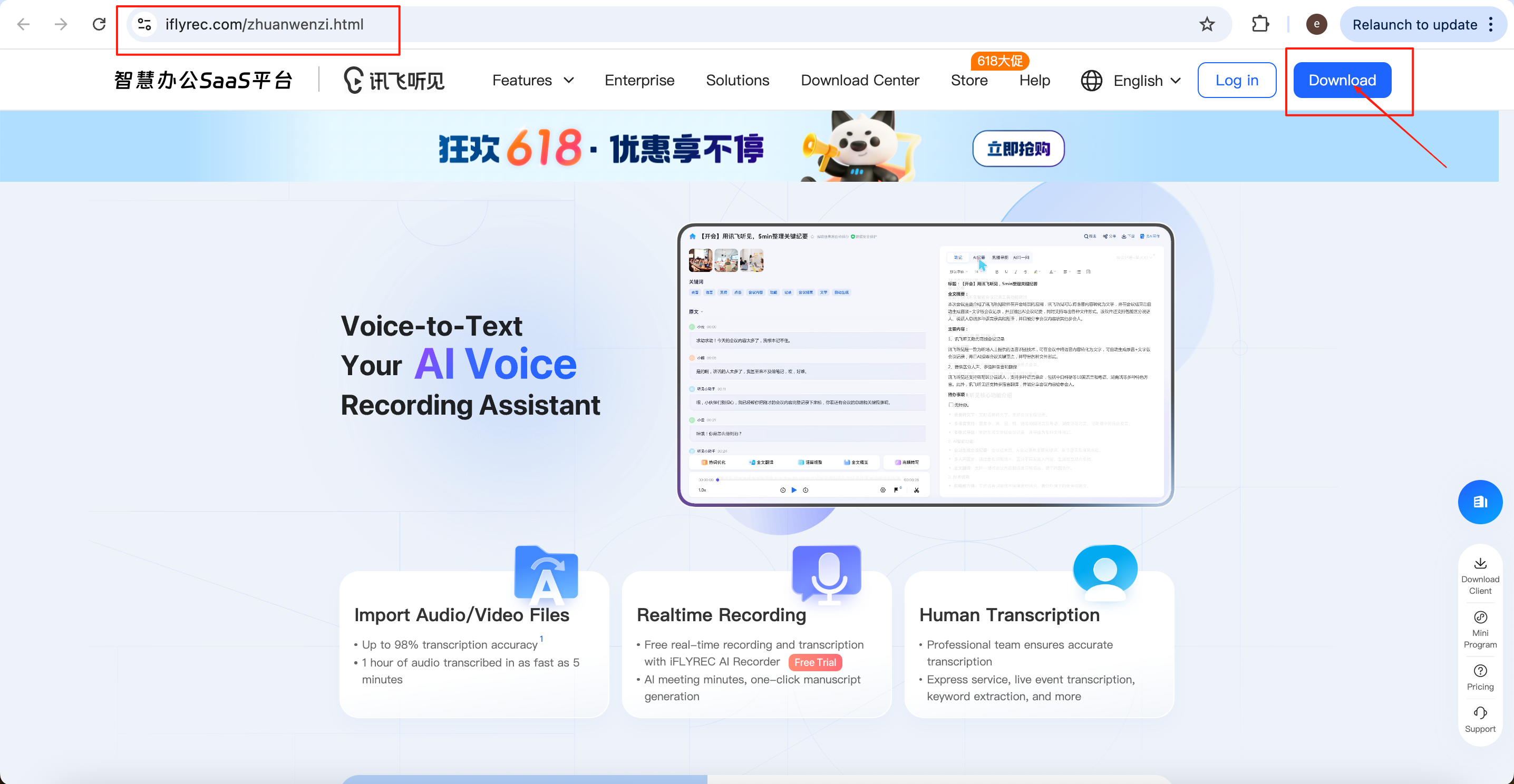
First, visit the official iFLYREC download page:
https://www.iflyrec.com/zhuanwenzi.html
After entering the page, click ‘Download’ to obtain the latest client installation program.
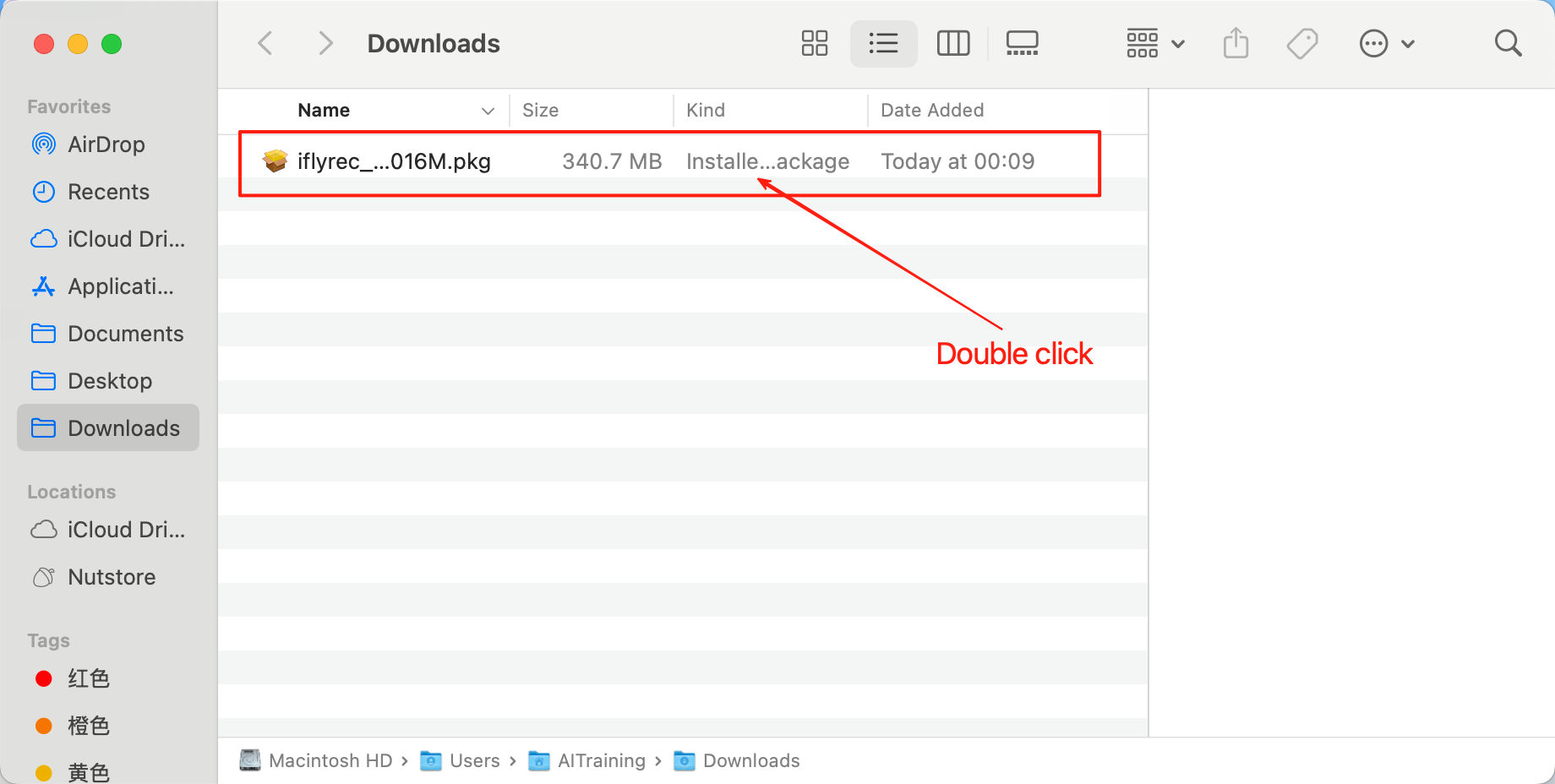
Once the download is complete, double-click the installation package to start the installer and follow the installation wizard to complete the software deployment step by step.
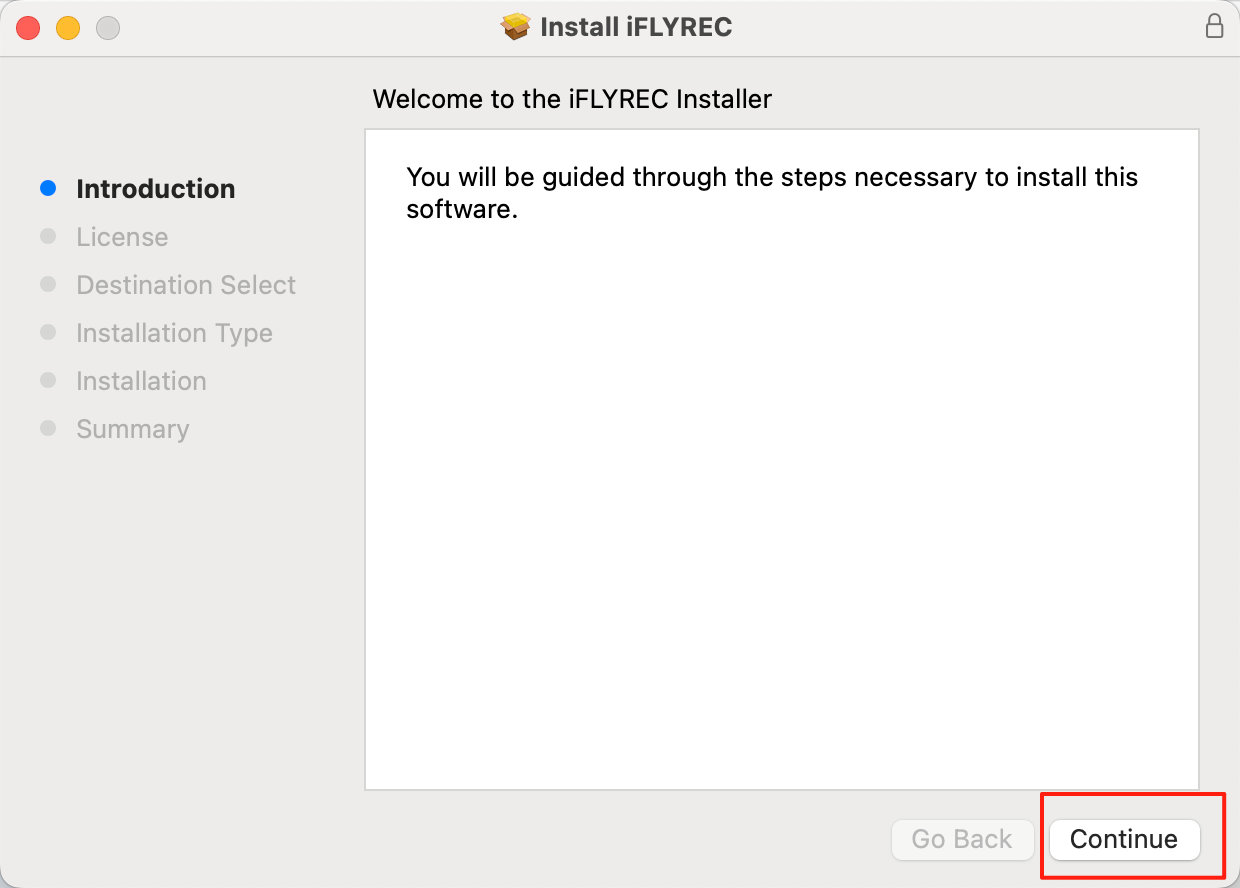
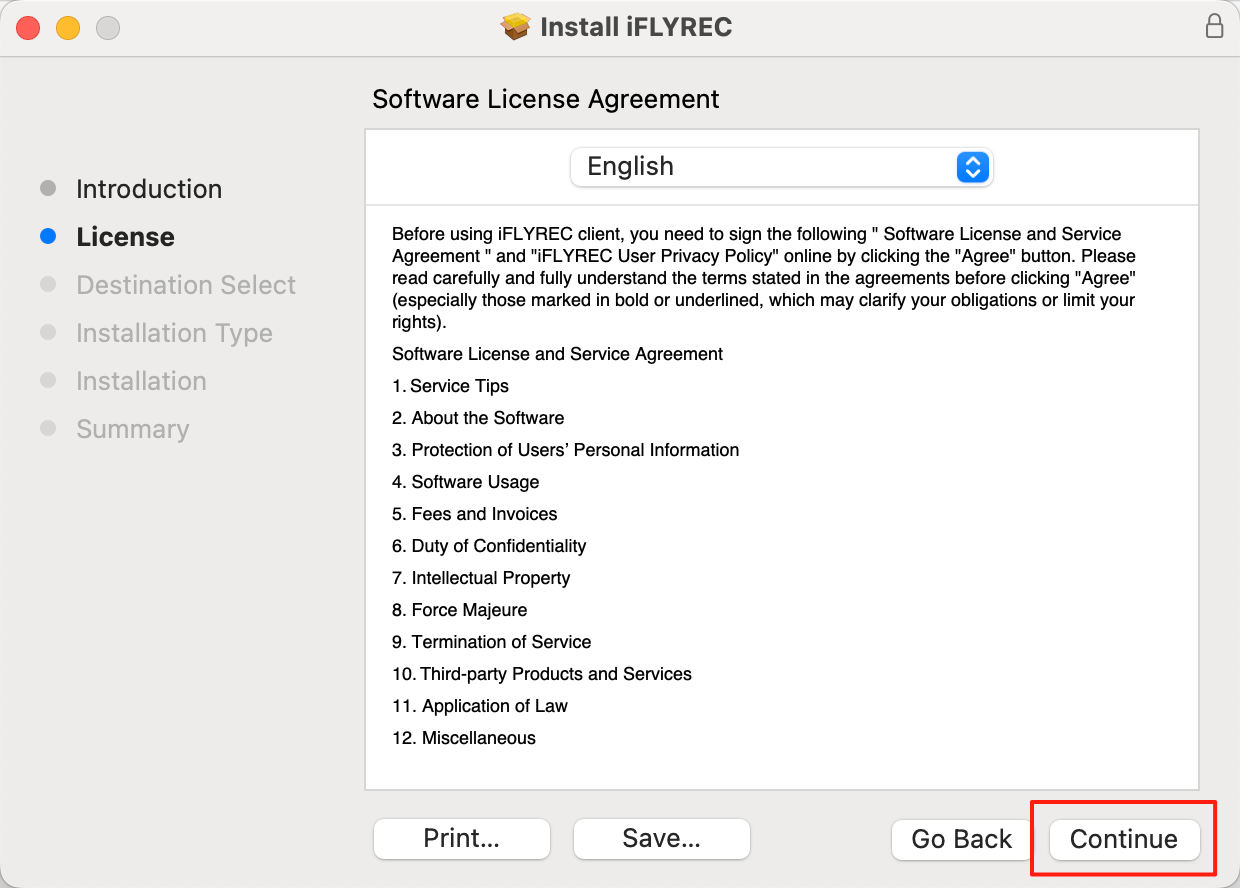
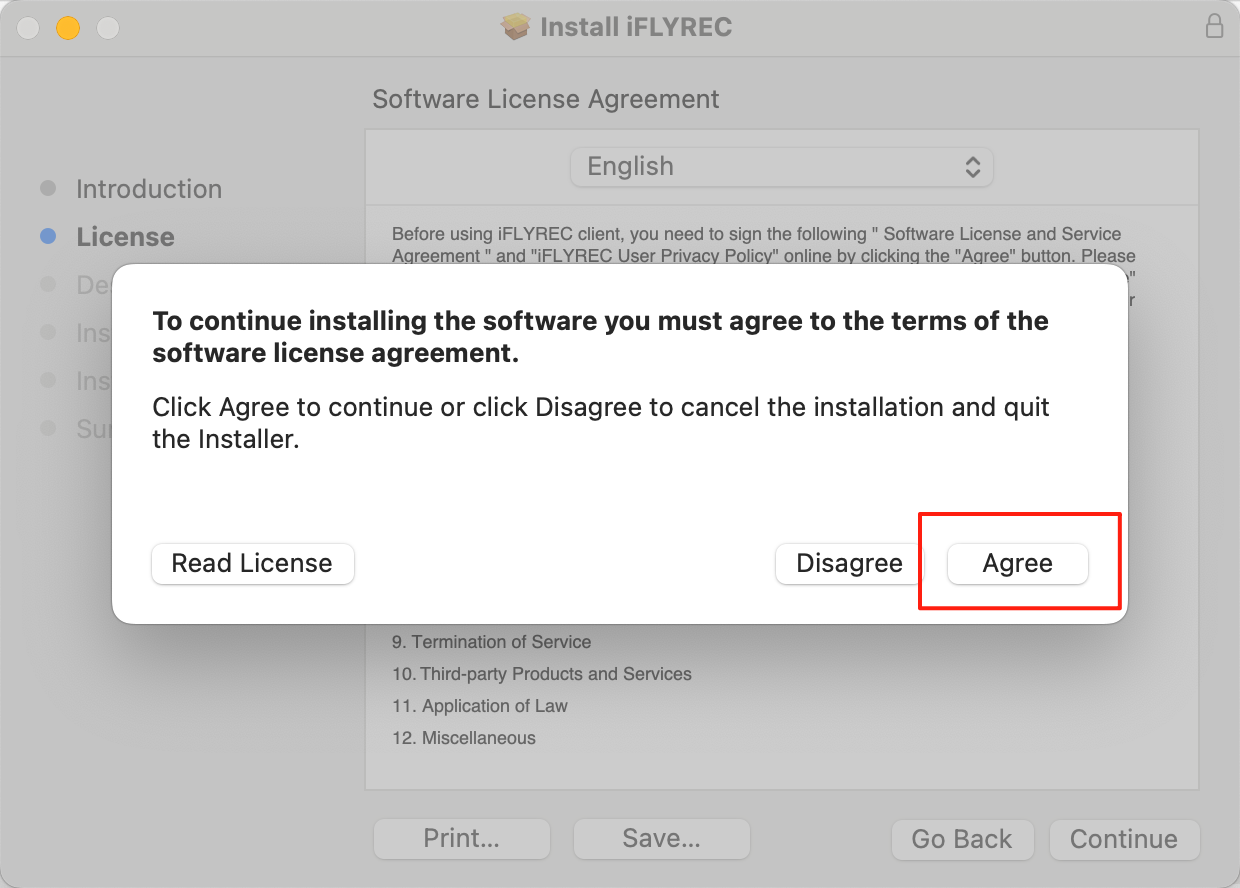
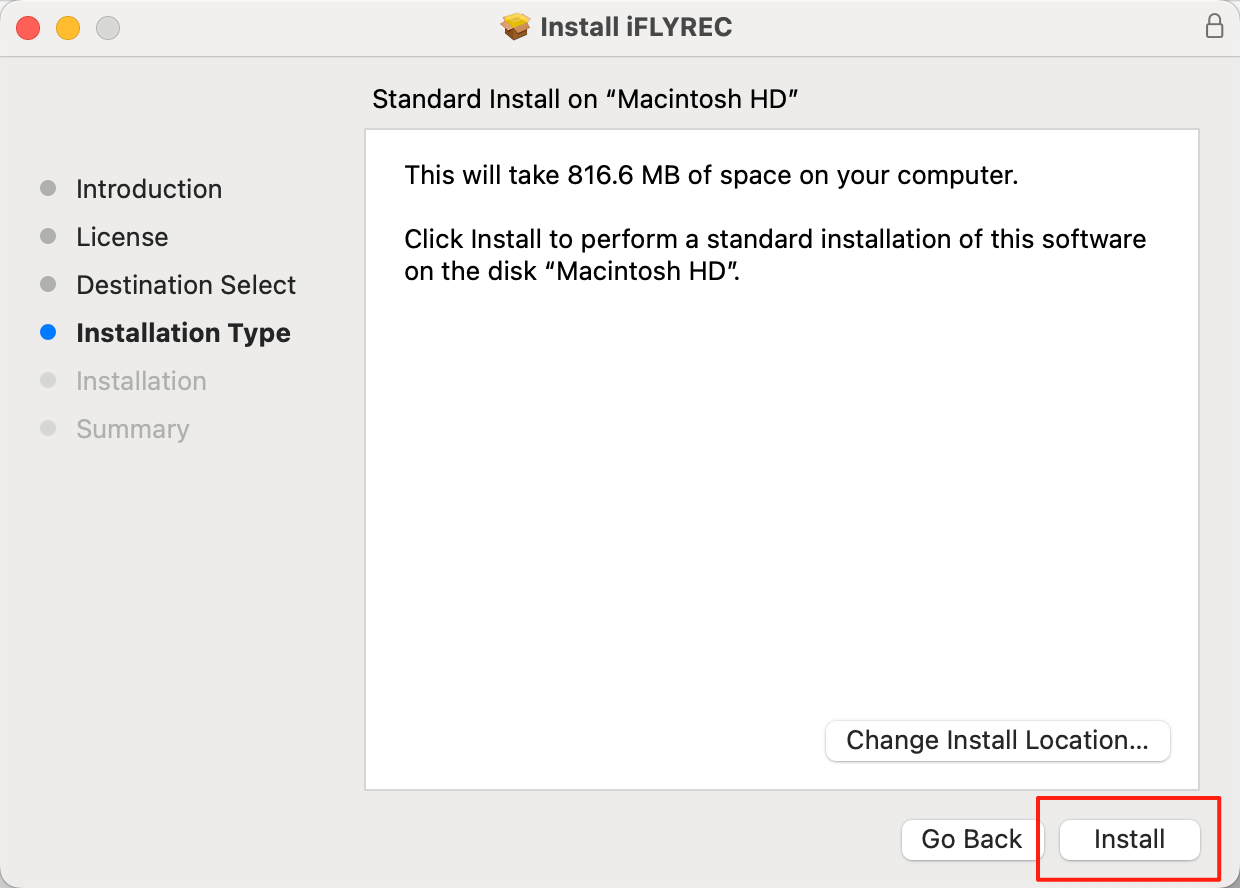
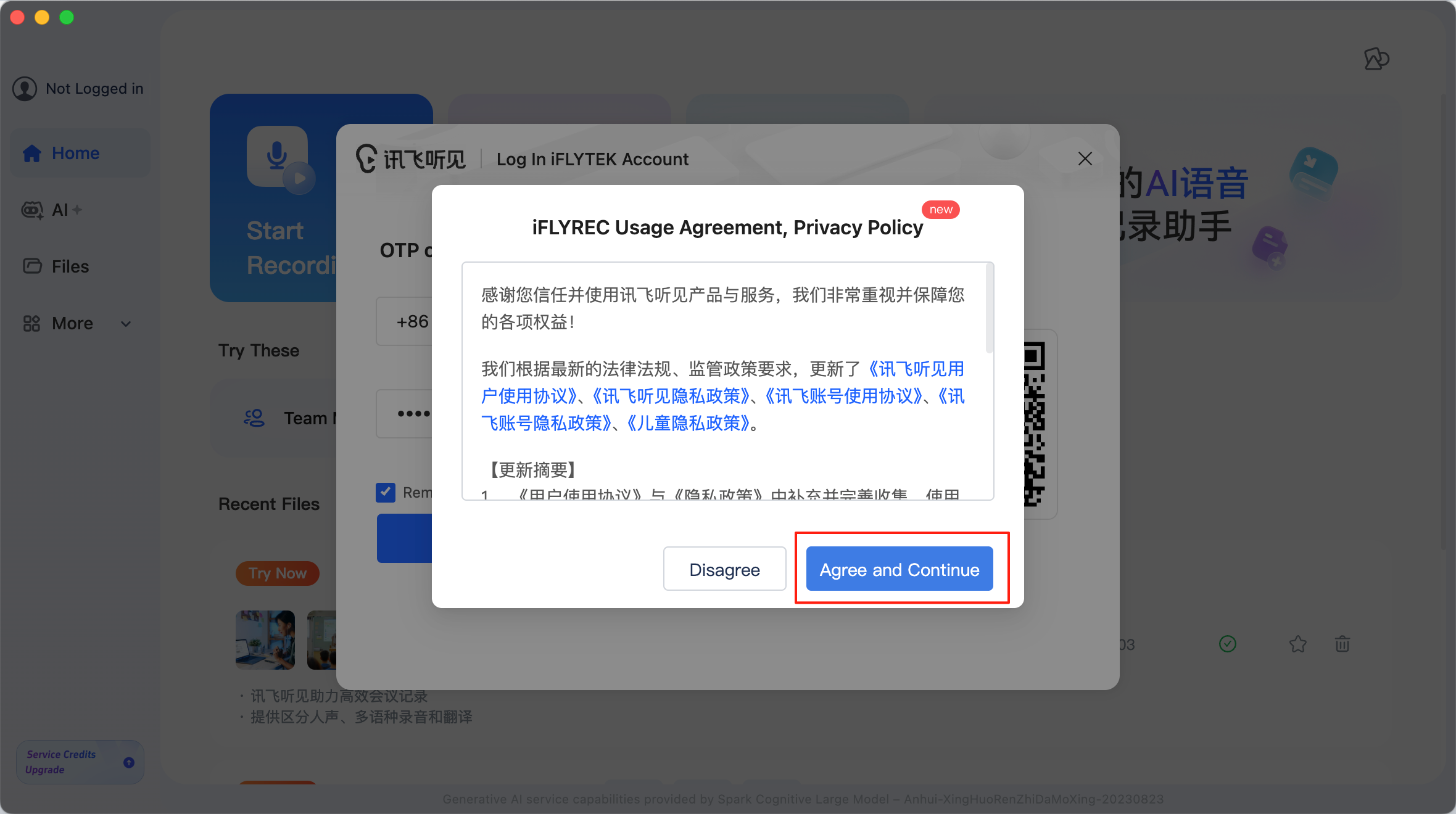
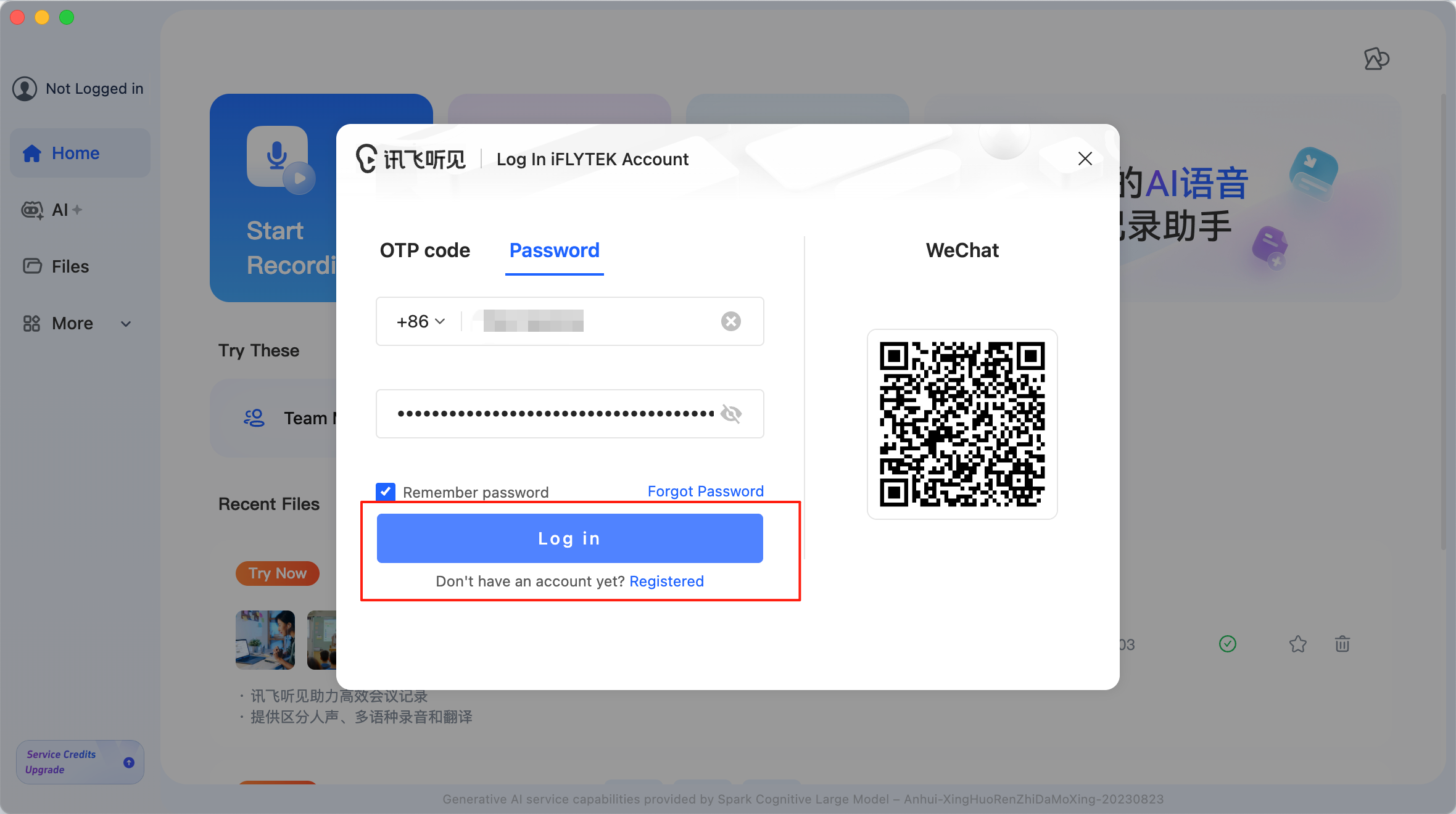
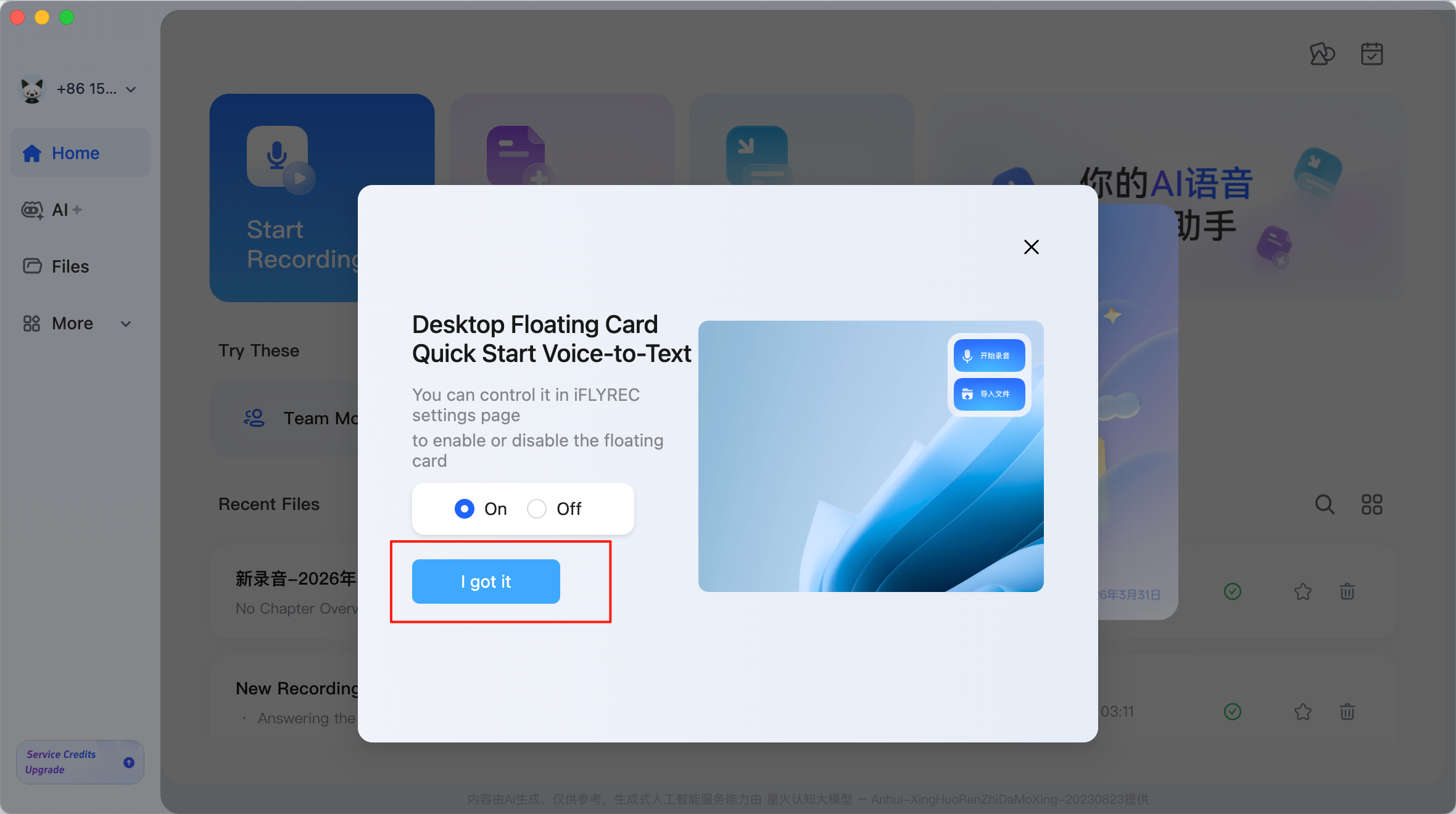
When launching the software for the first time, you need to read and agree to the user agreement, and then log in to the system using your iFLYTEK account.
After logging in, you can enter the software’s main interface and start the subsequent transcription tasks.
2. Overview of the Main Interface
The iFLYREC homepage integrates various speech-to-text capabilities, covering usage needs in different scenarios. The interface provides relatively direct entry points for tasks such as real-time recording, existing file transcription, and subtitle creation, and the usage logic is relatively clear.
| Feature Module | Main Purpose |
| Start Recording | Real-time recording and synchronised transcription, suitable for live meeting notes and lecture shorthand |
| Import File | Import existing audio/video files for transcription, suitable for interview collation, meeting reviews, and subtitle production |
| Floating Captions | Provides real-time floating captions, allowing you to view transcription results while using other applications |
The Recent Files area at the bottom of the software displays recently processed tasks, allowing users to review historical files at any time. Once tasks are synchronised to the cloud, it is also convenient to continue processing on different devices, reducing the burden of local file management.
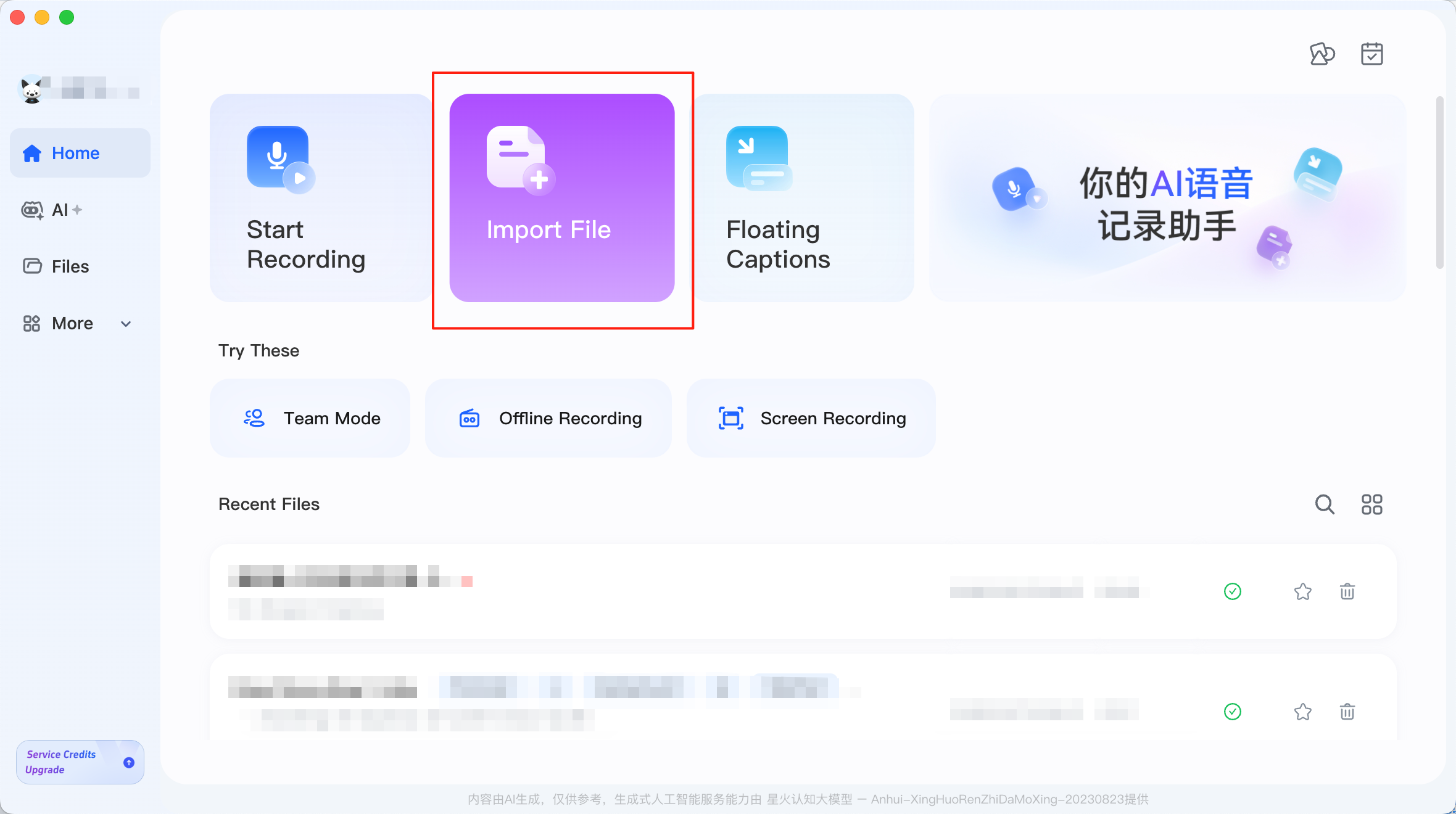
In practical applications, the most common need is not real-time recording, but converting already recorded audio and video materials into text. Therefore, this article focuses on the Import File function.
3. File Upload and Parameter Configuration
Transcription quality is not only closely related to the clarity of the audio itself but also to the initial parameter settings. Before uploading a file, setting options like language, speaker number, and professional domain can usually make the recognition results more stable and simplify subsequent proofreading.
3.1 Selecting the Source Language
The source language setting is an important factor affecting recognition accuracy. Users should choose a language type that matches the audio content as closely as possible, such as English, Chinese-English mixed, or Chinese. When the language is selected incorrectly, the system often produces more errors, especially in cases involving proper nouns and complex long sentence structures.
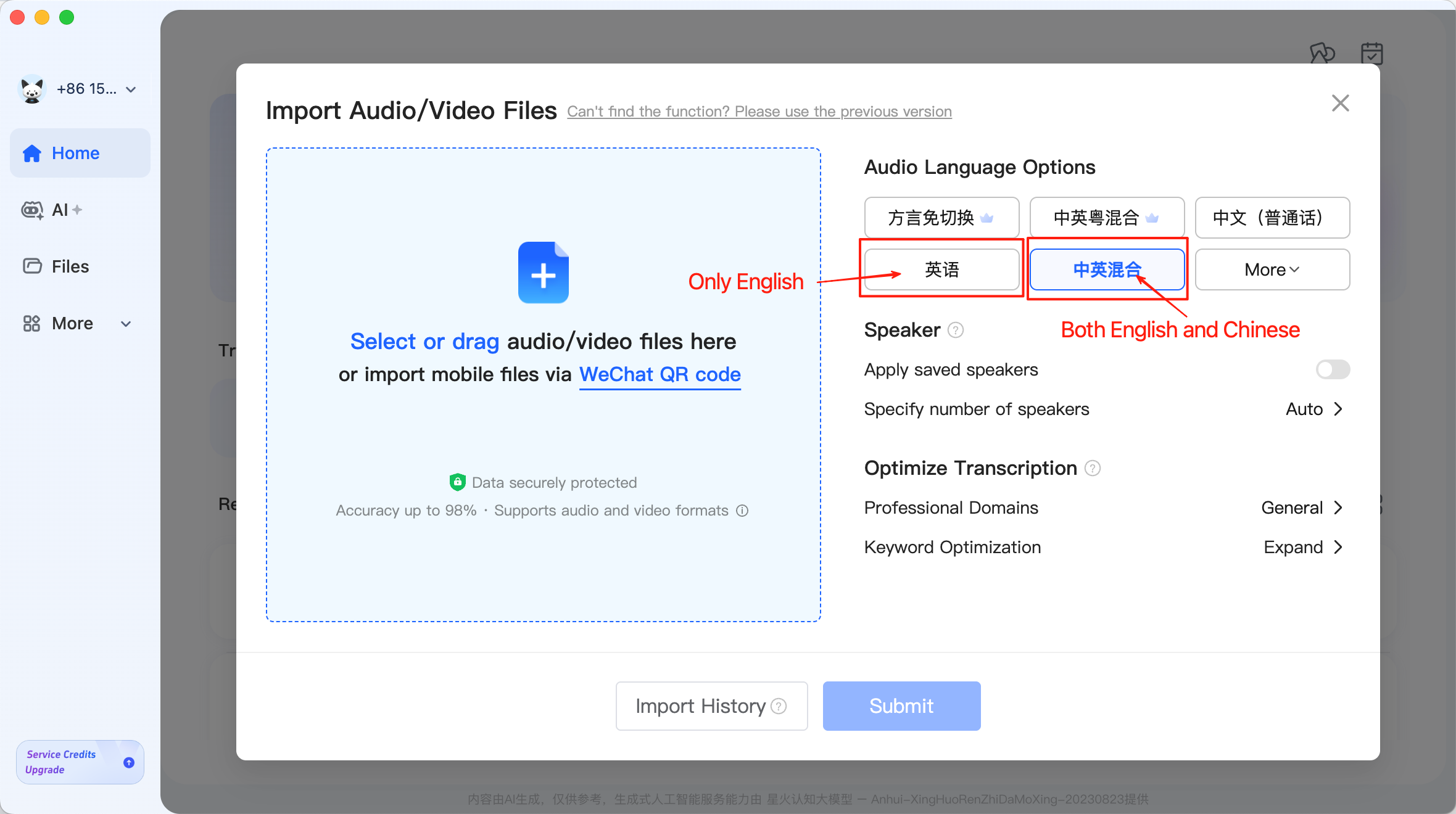
Clicking More allows you to view a wider range of language options, including Spanish, Japanese, Chinese, and many other languages, as well as enhanced models like English Pro and Chinese-English Mixed Pro.
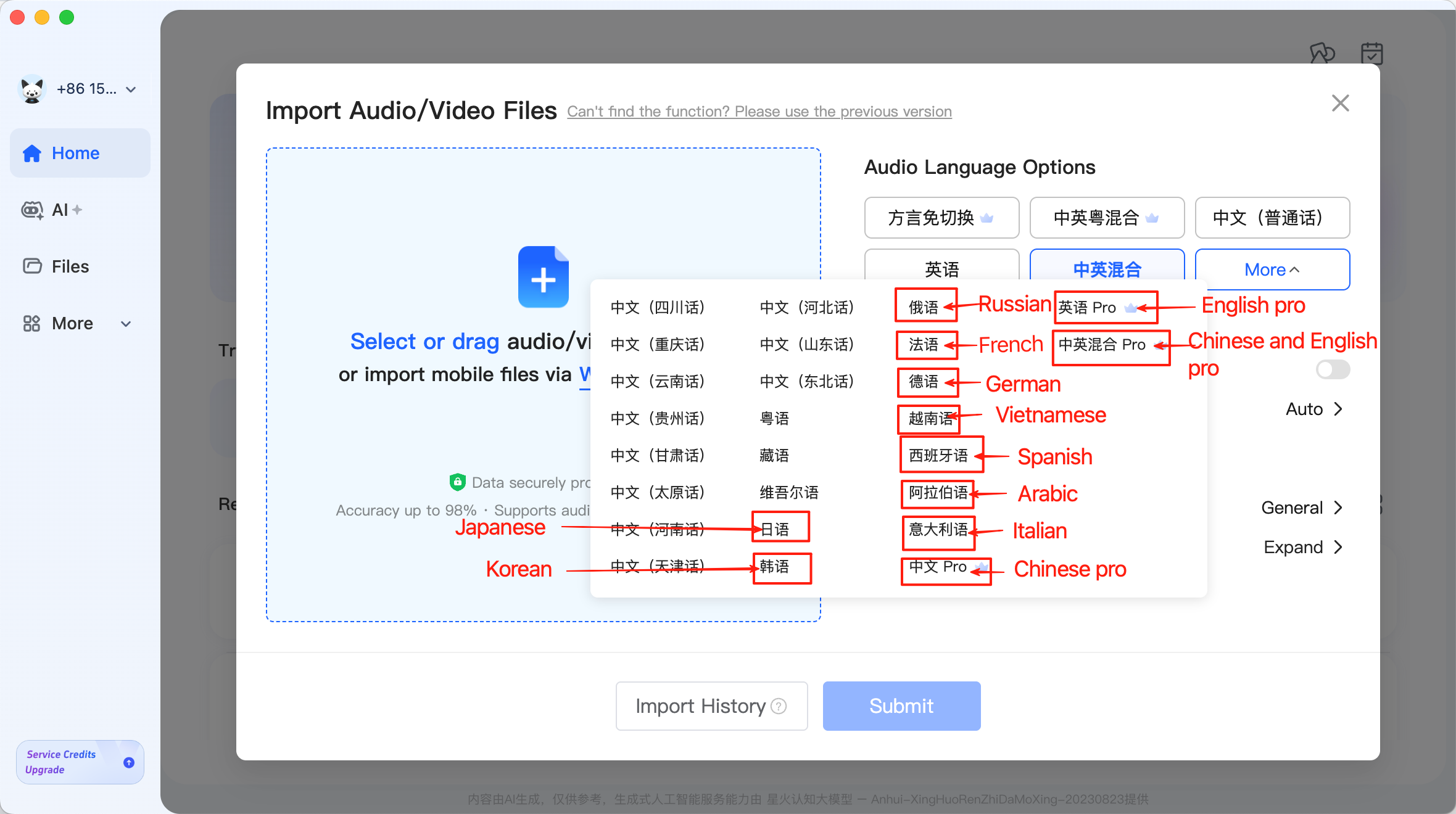
In actual use, choosing the right language model accurately is often more important than repeatedly making corrections later. For content with many specialised terms, non-standard pronunciation, or mixed-language expressions, selecting an appropriate model can significantly improve readability.
3.2 Importing Audio/Video Files
After completing the language selection, you can drag the file to be processed directly into the upload area, or import it through the file selection window.
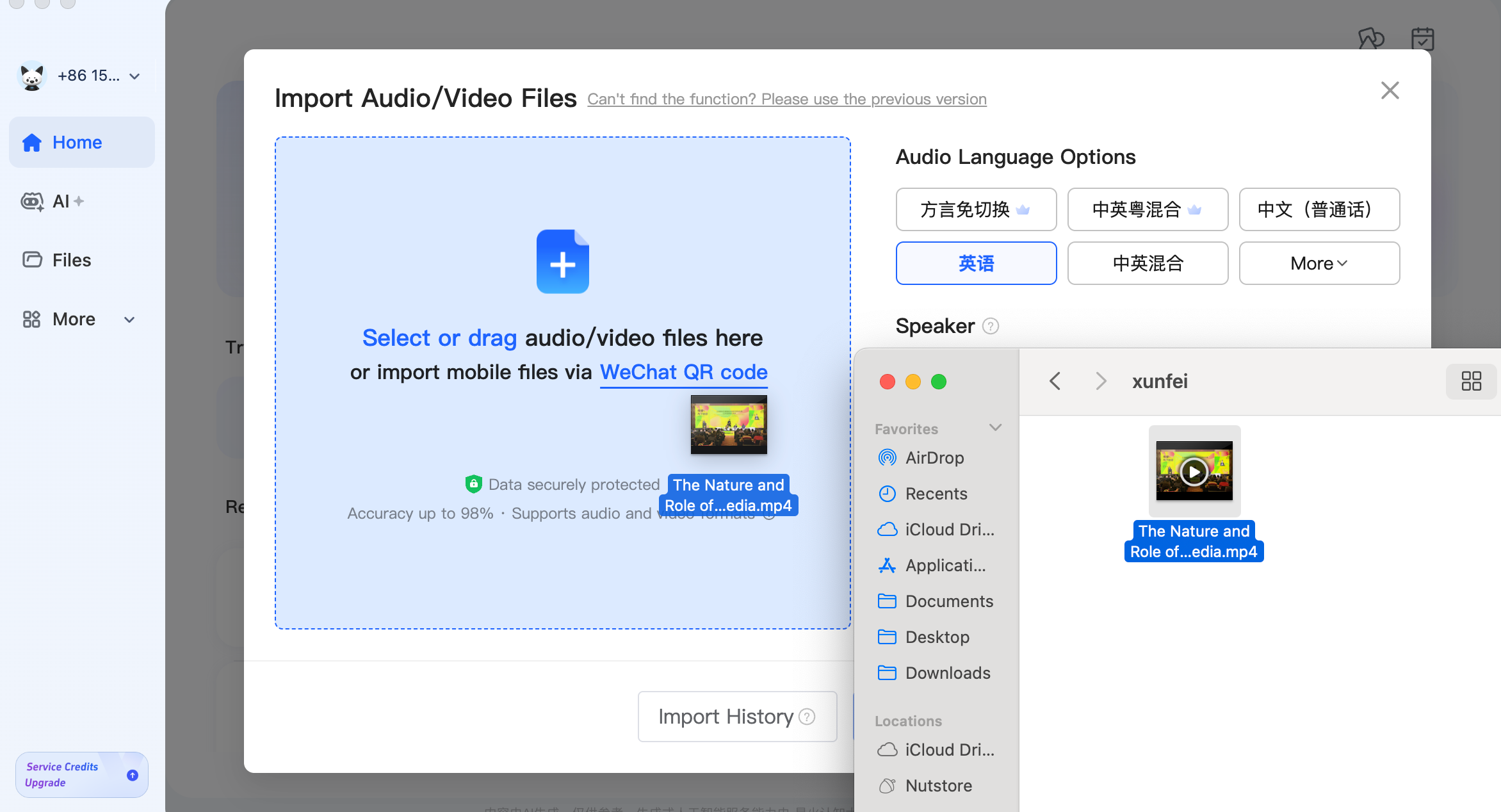
It supports a wide range of video and audio formats, covering the vast majority of meeting recordings, course videos, and interview materials. For longer materials, it is recommended to confirm the file naming and source first, so that they are easier to identify during subsequent organisation and export.
3.3 Setting the Number of Speakers
In multi-person interviews or meetings, distinguishing between different speakers is very important for subsequent analysis. The clearer the speaker diarisation, the easier the final text is to read and the more convenient it is for topic summarisation and viewpoint comparison during research.
iFLYREC offers a speaker diarisation feature, allowing users to manually specify the number of speakers or select Auto to let the system determine it automatically.
For example, if the file is a single-person speech, course recording, or podcast interview, you can directly select 1 Speaker. For multi-person discussion scenarios, it is recommended to set the number of people as accurately as possible to reduce errors in the system’s allocation of dialogue turns. More accurate speaker information typically leads to a clearer and more standardised transcription result.
3.4 Configuring Professional Domains
For specialised scenarios such as law, economics, and medicine, iFLYREC also provides domain-specific optimisation models.
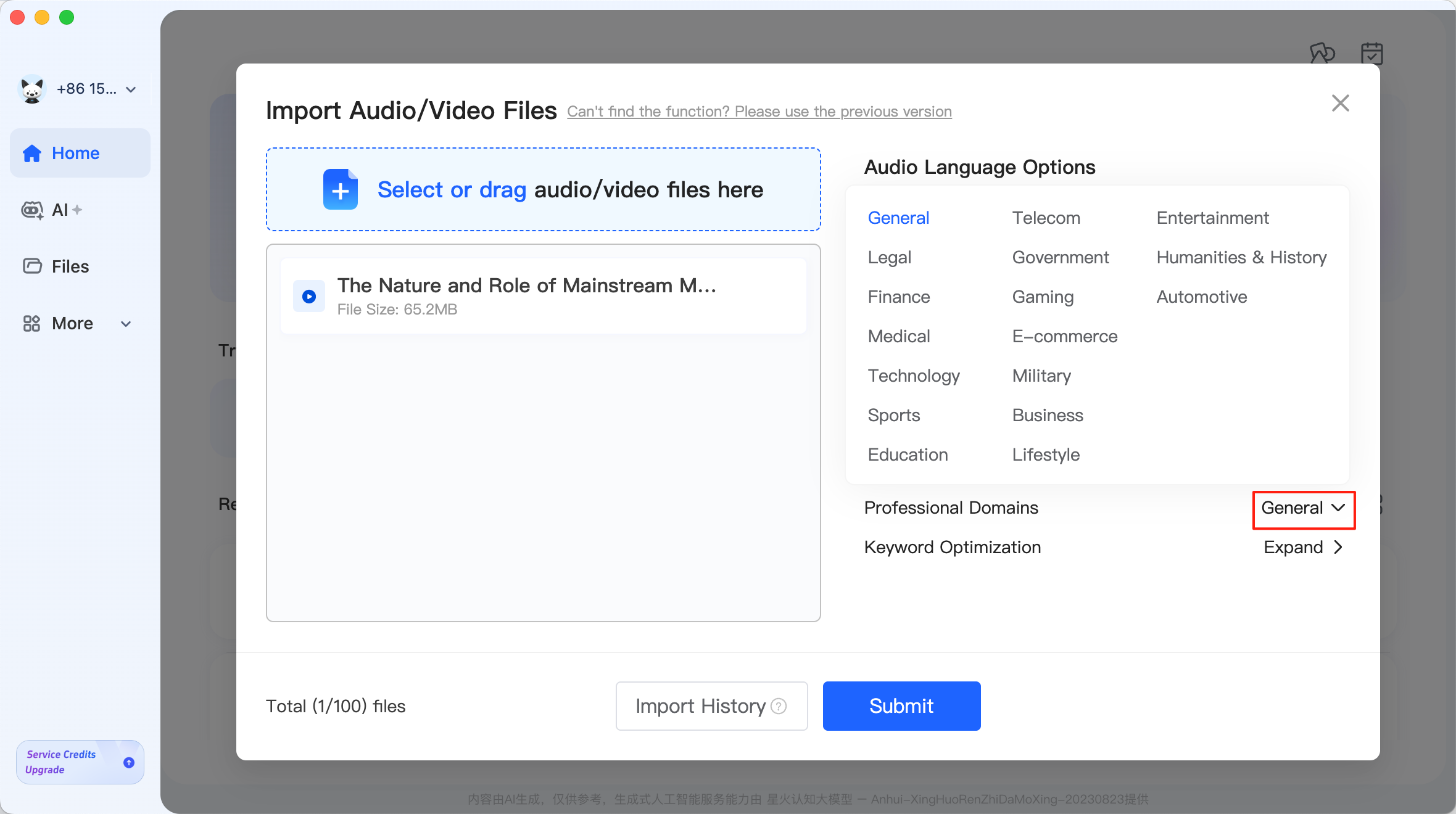
When the transcription content involves many specialised terms, selecting the corresponding domain can often effectively reduce the term recognition error rate and improve the overall readability of the text. For instance, if company names, research jargon, or industry abbreviations frequently appear in a meeting, the system is more likely to make reasonable judgments if it knows the general domain.
If the system’s provided domain categories cannot fully match your research topic, you can also use the Keyword Optimization feature to customise keywords for auxiliary optimisation.
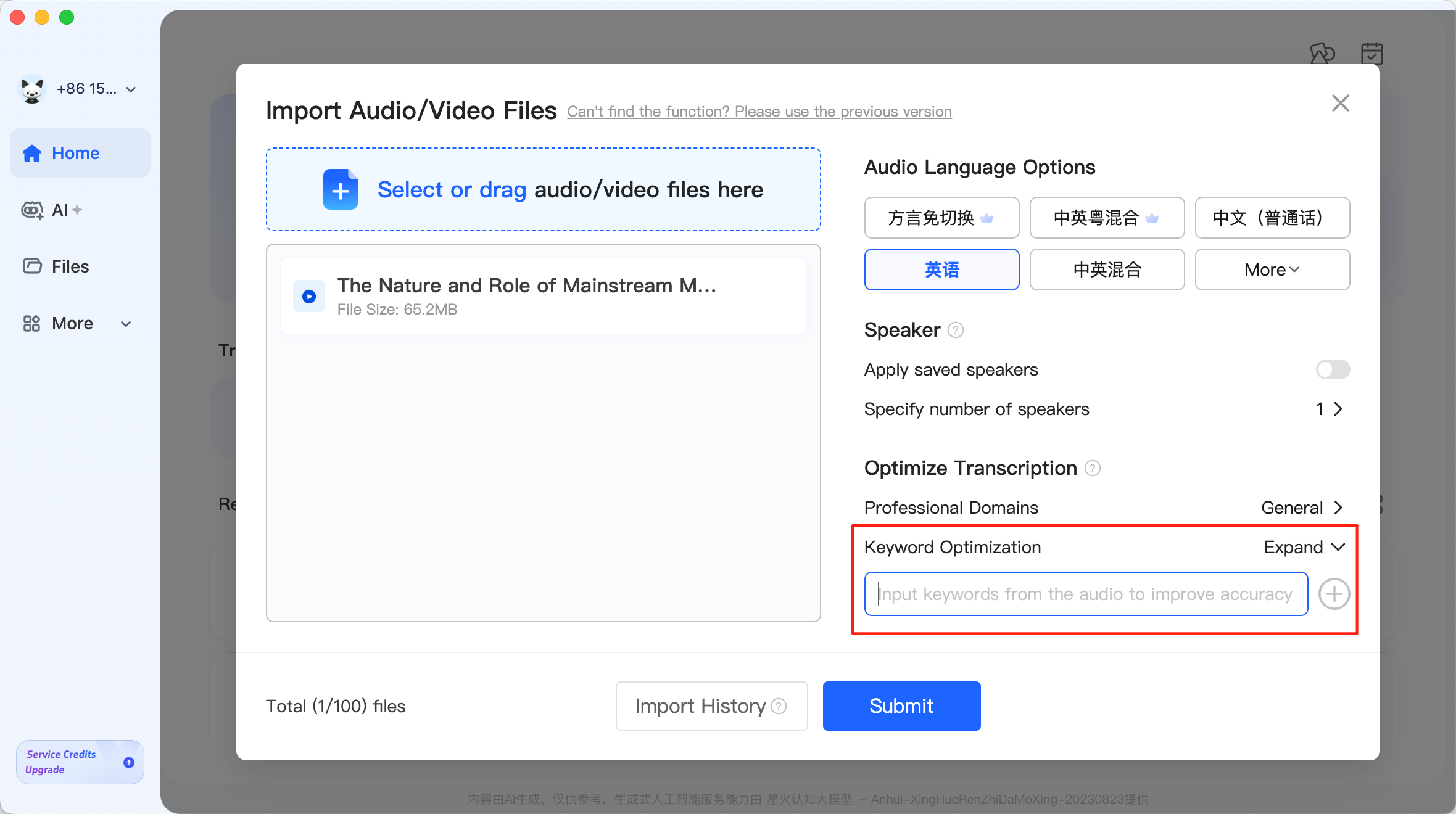
This type of setting is particularly suitable for academic interviews, industry exchanges, and thematic discussions. The system will combine keyword information to make more targeted corrections to the recognition results, bringing the final text closer to the original semantics.
3.5 Submitting the Transcription Task
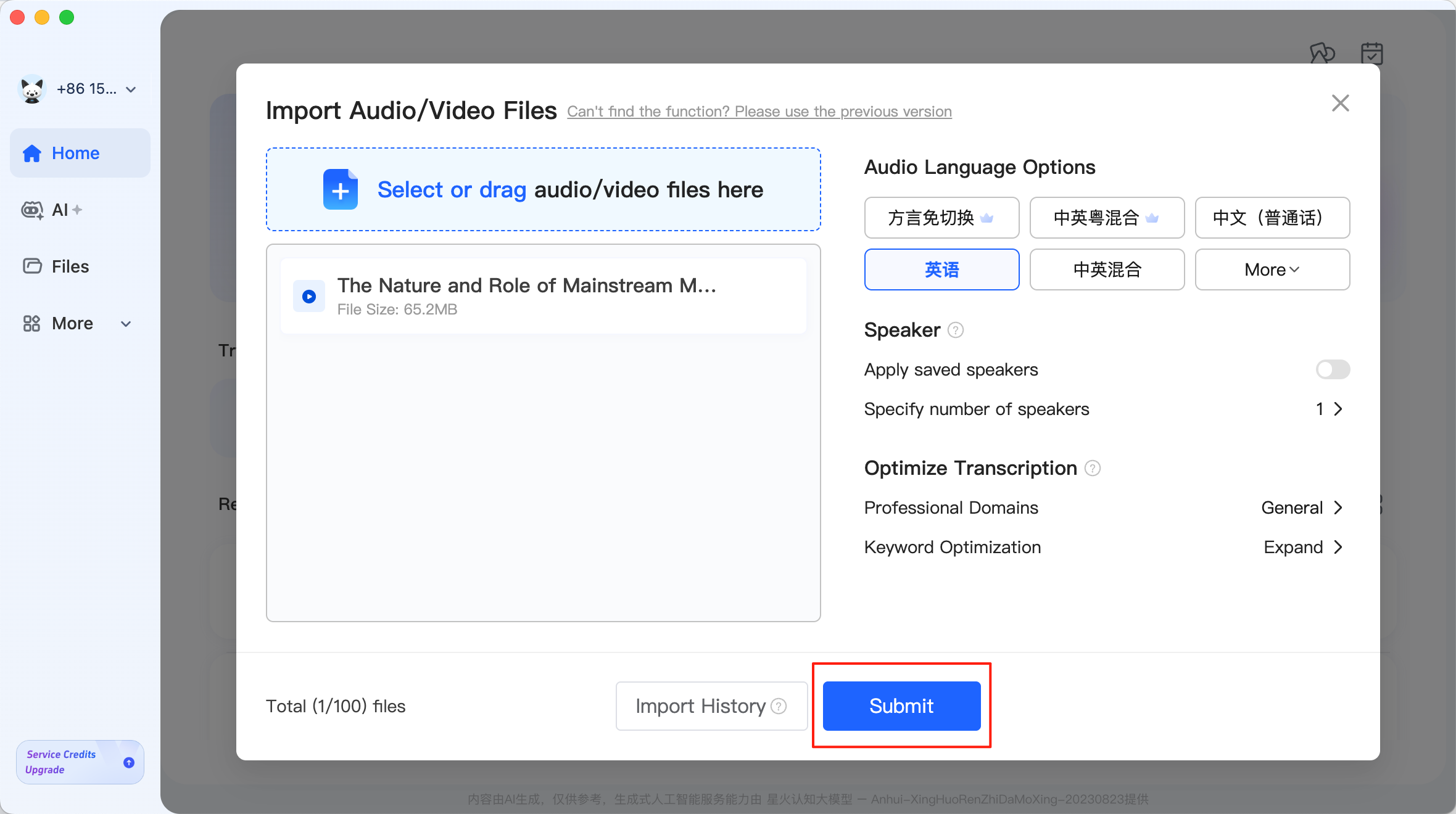
After completing the parameter settings, click Submit to upload the file and submit the task.
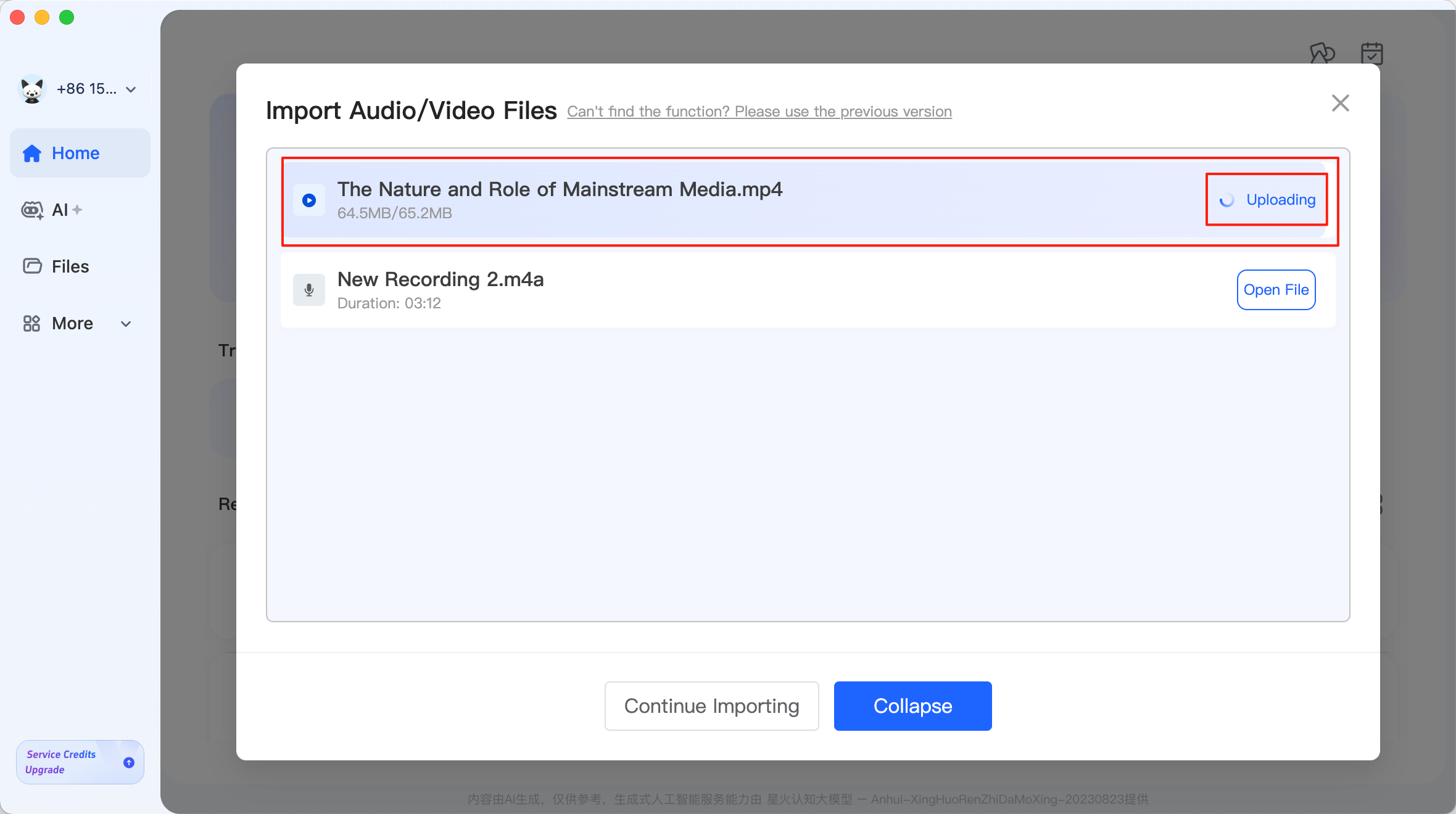
During the upload process, the system will display real-time progress. Once the upload is complete, the original Uploading status will change to Open File.
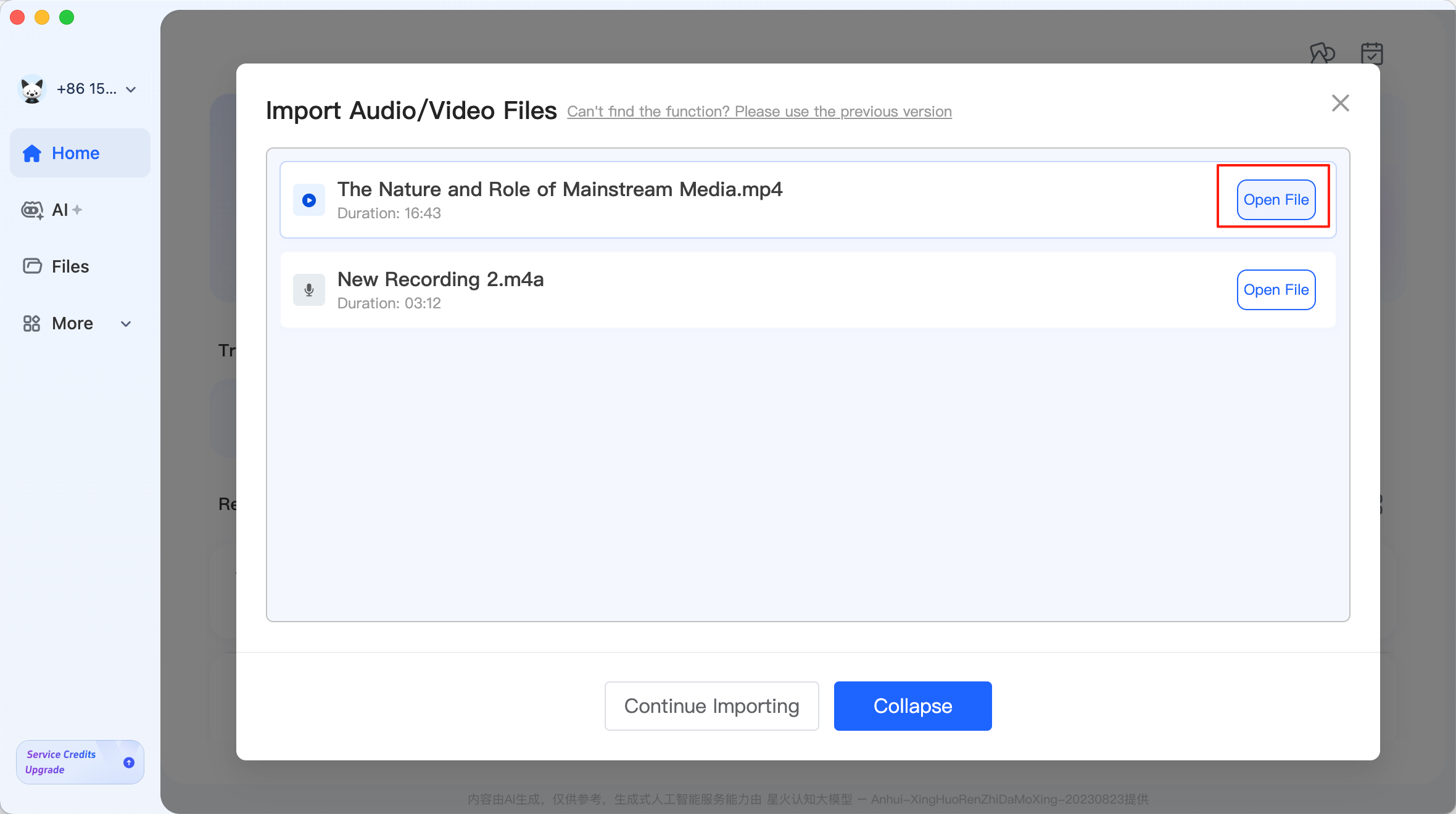
Click it to enter the transcription interface and start processing the task. This process may take some time for large files or long recordings, but the overall operation logic remains relatively intuitive.
4. Viewing Transcription Results and Quality Proofreading
While a task is running or after transcription is complete, the system will display the corresponding file in the left taskbar.
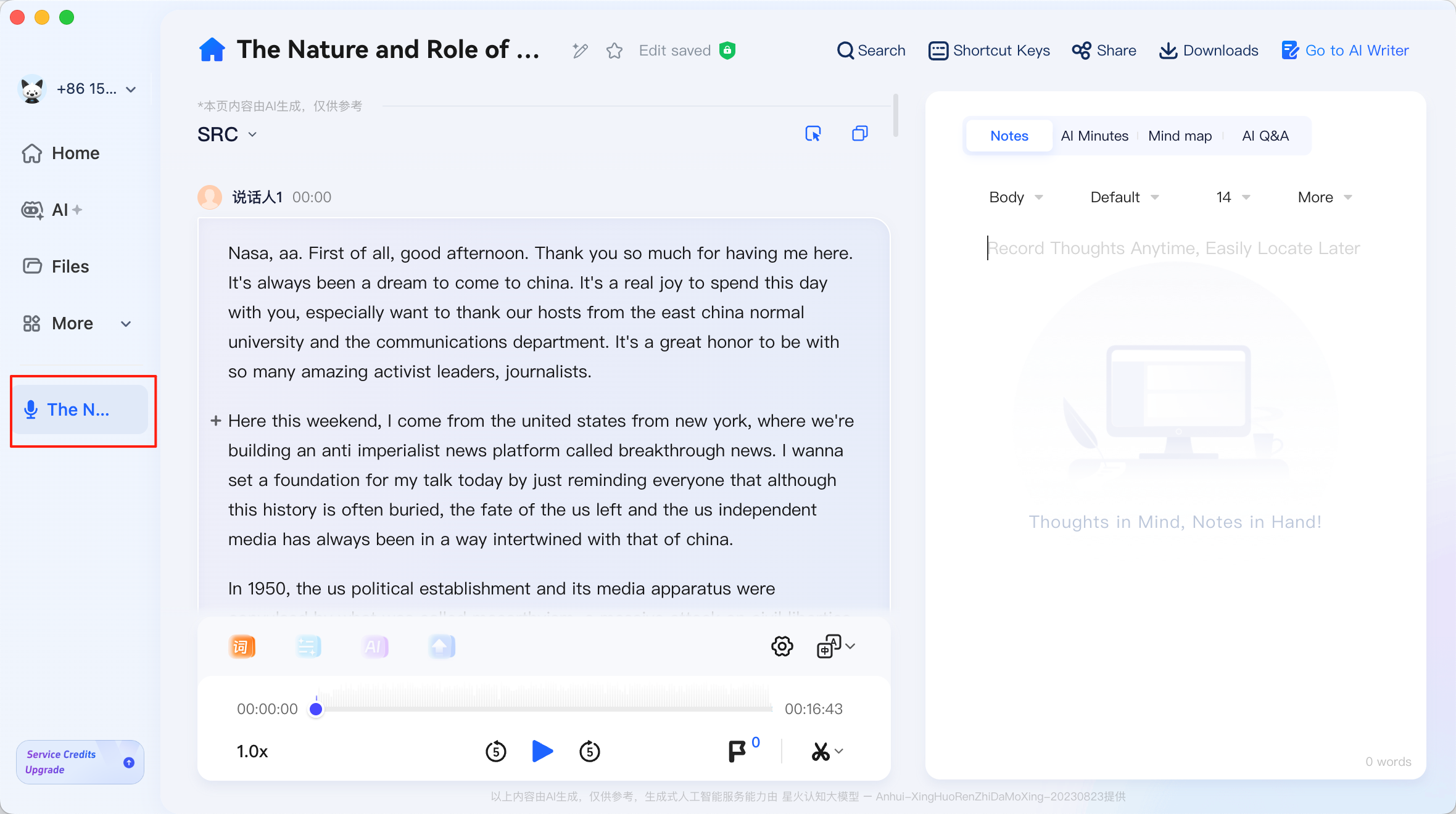
Users can open the task at any time to view the recognition results. iFLYREC uses an audio-text linkage method for proofreading: when you click on any paragraph in the text, the player will automatically jump to the corresponding time position.
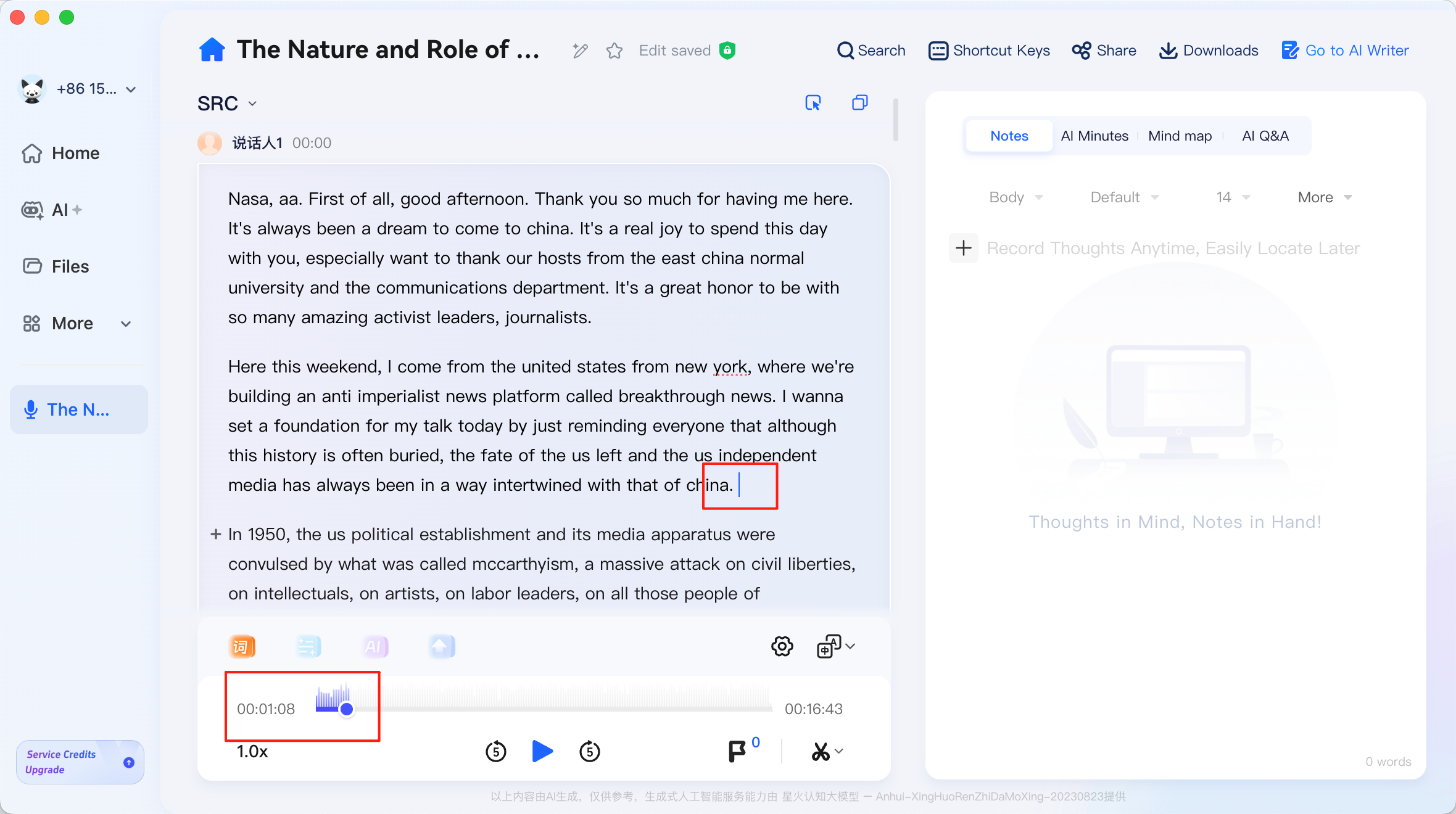
This design is very practical for collating interview materials, verifying meeting minutes, and performing sentence-by-sentence proofreading in academic research. It helps users quickly confirm who said a particular sentence, whether the original speech was recognised correctly, and whether the context segmentation is reasonable.
4.1 Preview Settings
The settings menu next to the player offers several auxiliary reading functions.
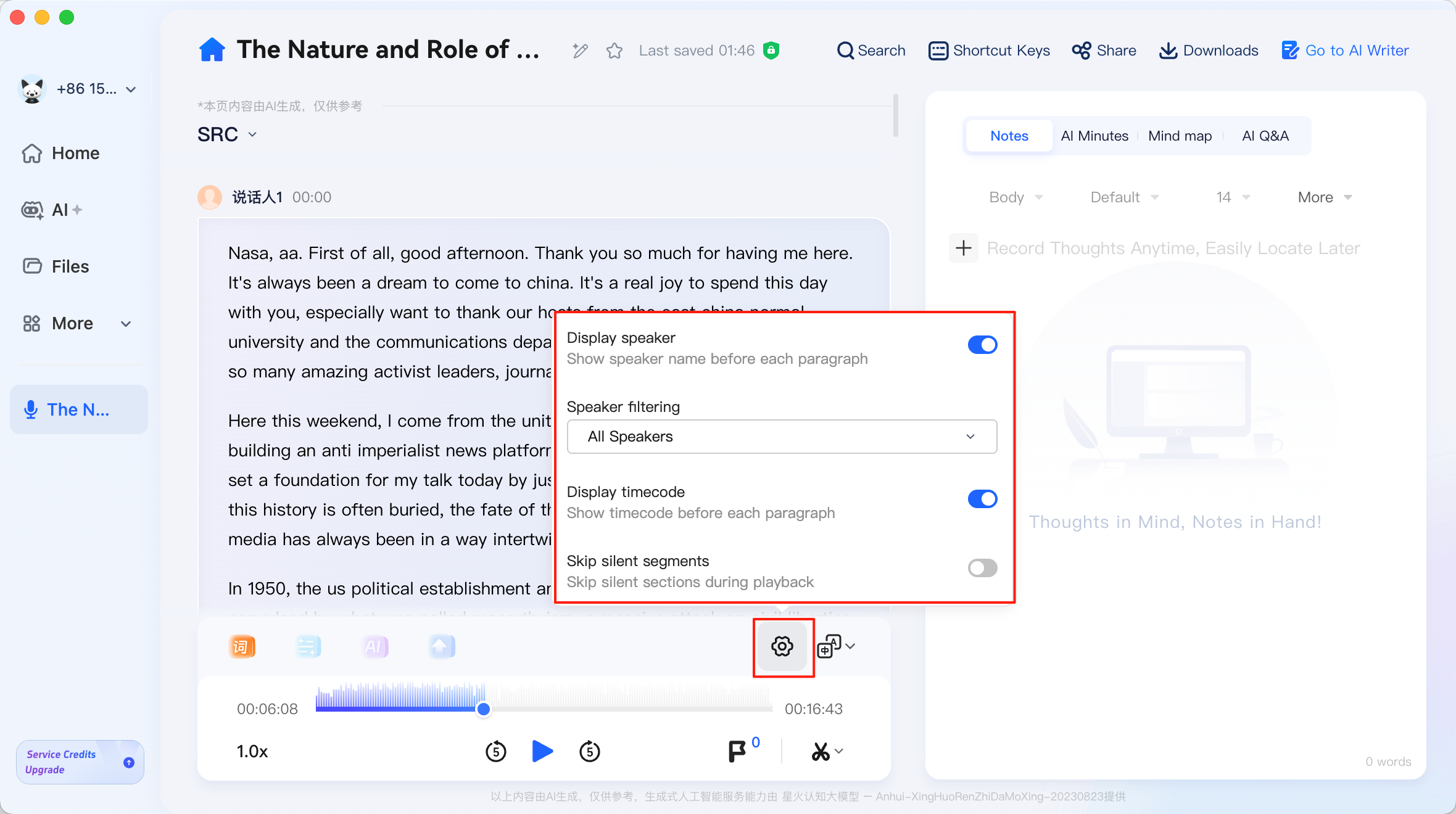
Among them, Display Speaker shows identity tags for different speakers; Speaker Filtering can filter playback content by speaker; Display Timecode shows the timestamps corresponding to text paragraphs; and Skip Silent Segments can automatically skip silent parts, making reading and playback more compact.
These settings are particularly helpful when dealing with long meetings, in-depth interviews, and classroom recordings. For users who need to quickly locate content, they not only improve efficiency but also reduce the hassle of repeatedly dragging the progress bar.
4.2 Automatic Translation Function
In addition to speech-to-text, iFLYREC also provides full-text translation capabilities. Clicking the translation button in the interface will perform an automatic translation of the transcribed text.
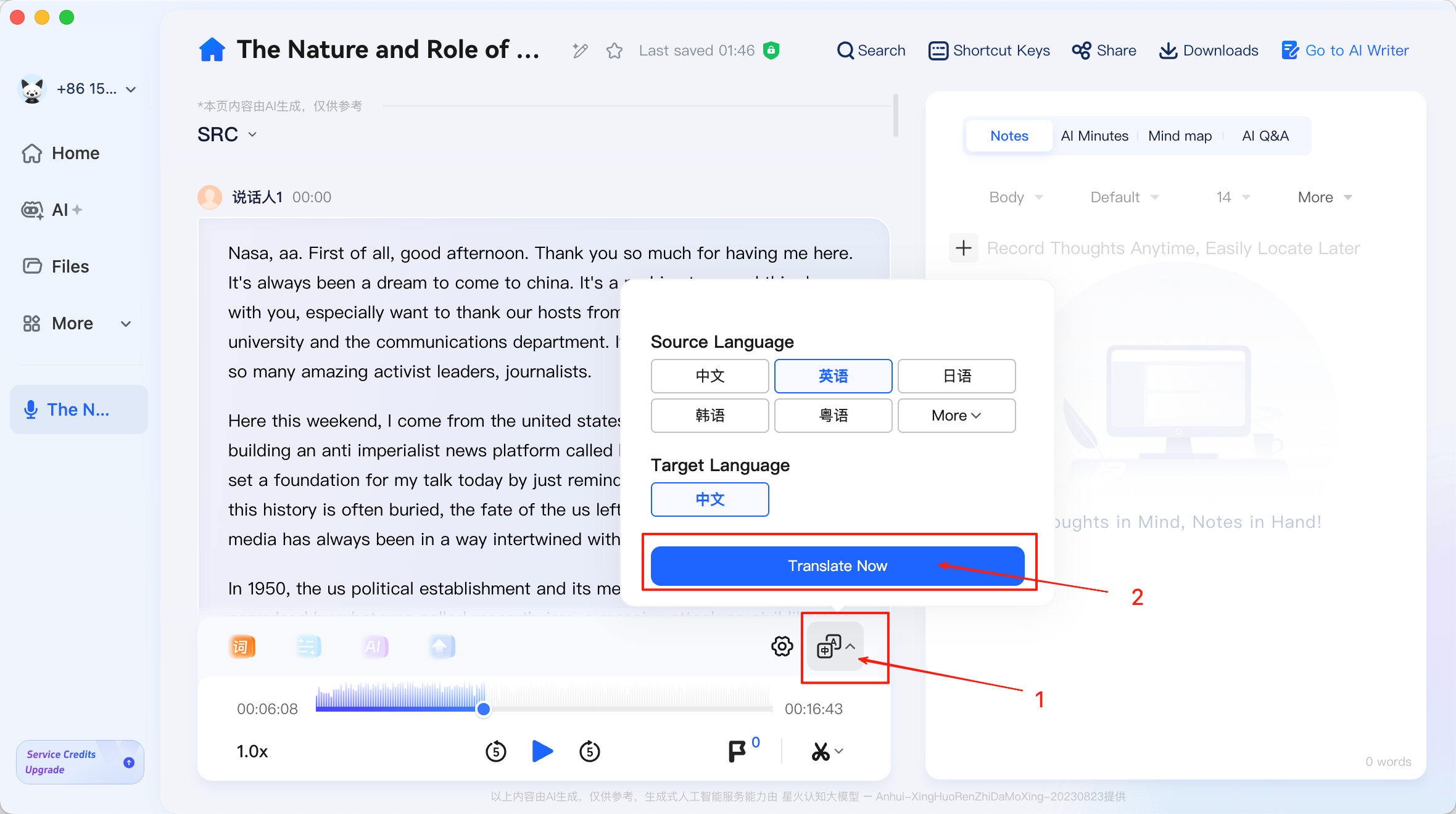
For cross-language interviews, international meetings, and foreign language course collation, this function can significantly reduce the manual translation workload and makes it convenient to obtain a readable Chinese version first for a second round of revision.
It should be noted that iFLYREC primarily supports translating multiple languages into Chinese. If you need to generate versions in other target languages, it is recommended to process them further with professional translation tools after export to ensure accuracy of expression.
5. Exporting and Saving Results
After completing the proofreading, you can go to the Downloads page to export the final results.
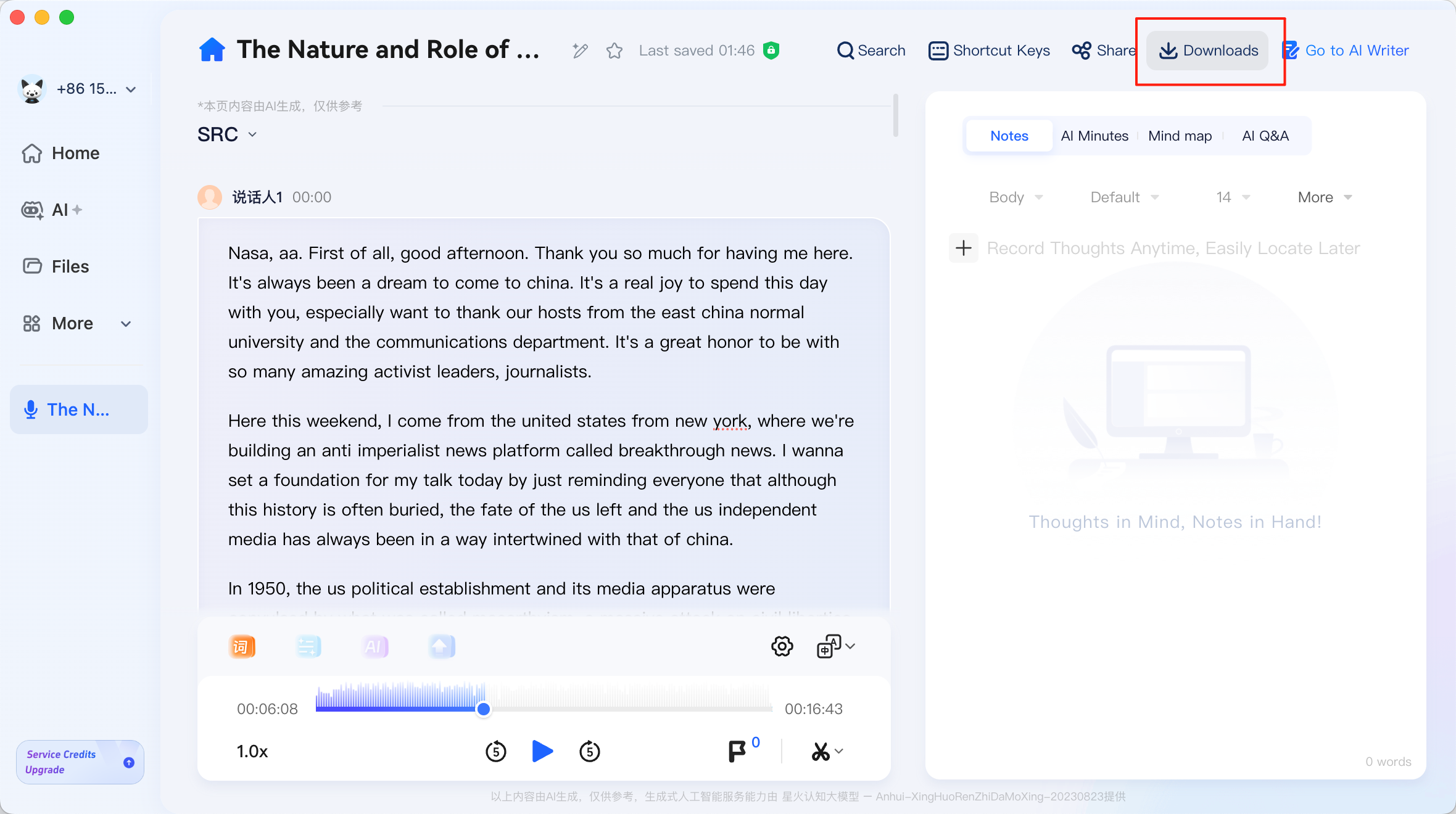
The system supports multiple output formats, including DOCX (Word Document), TXT (Plain Text), and SRT (Subtitle File). You can also decide whether to retain metadata such as timecodes and speaker information as needed.
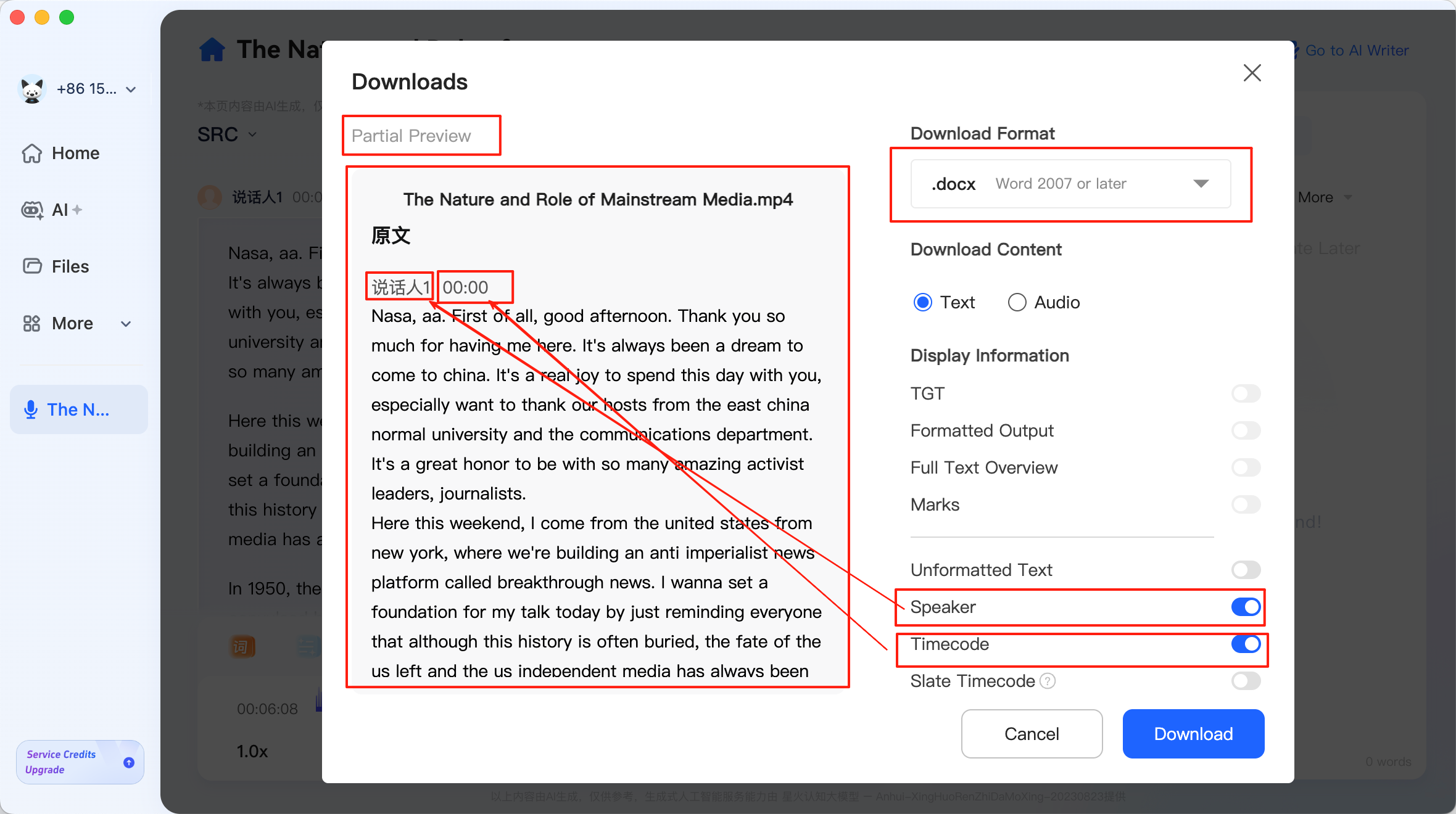
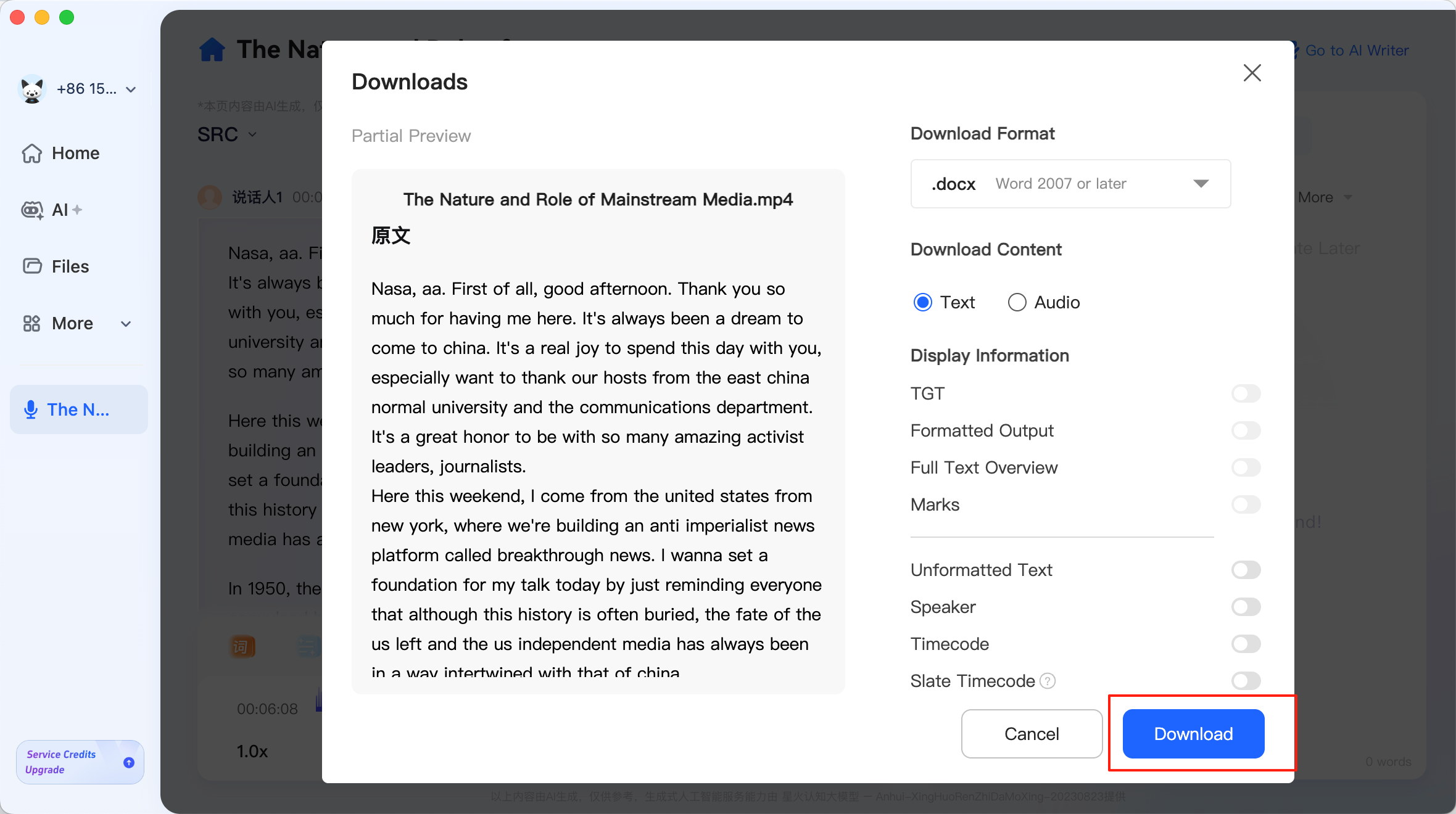
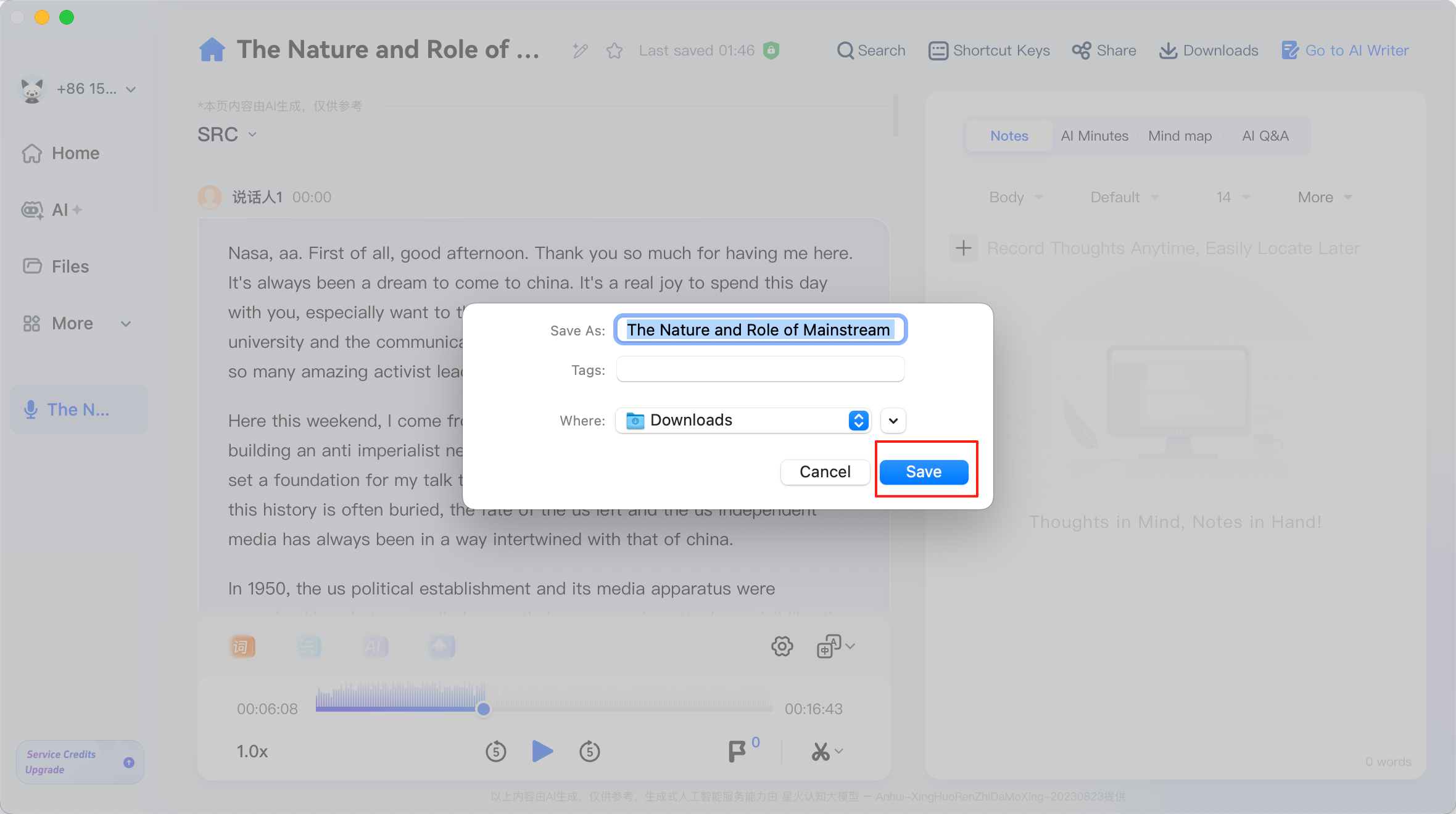
After confirming the parameters, click Download to save the file to your local device.
For video post-production, the SRT format is usually the most commonly used subtitle output format and can be directly imported into most editing software for subsequent editing.
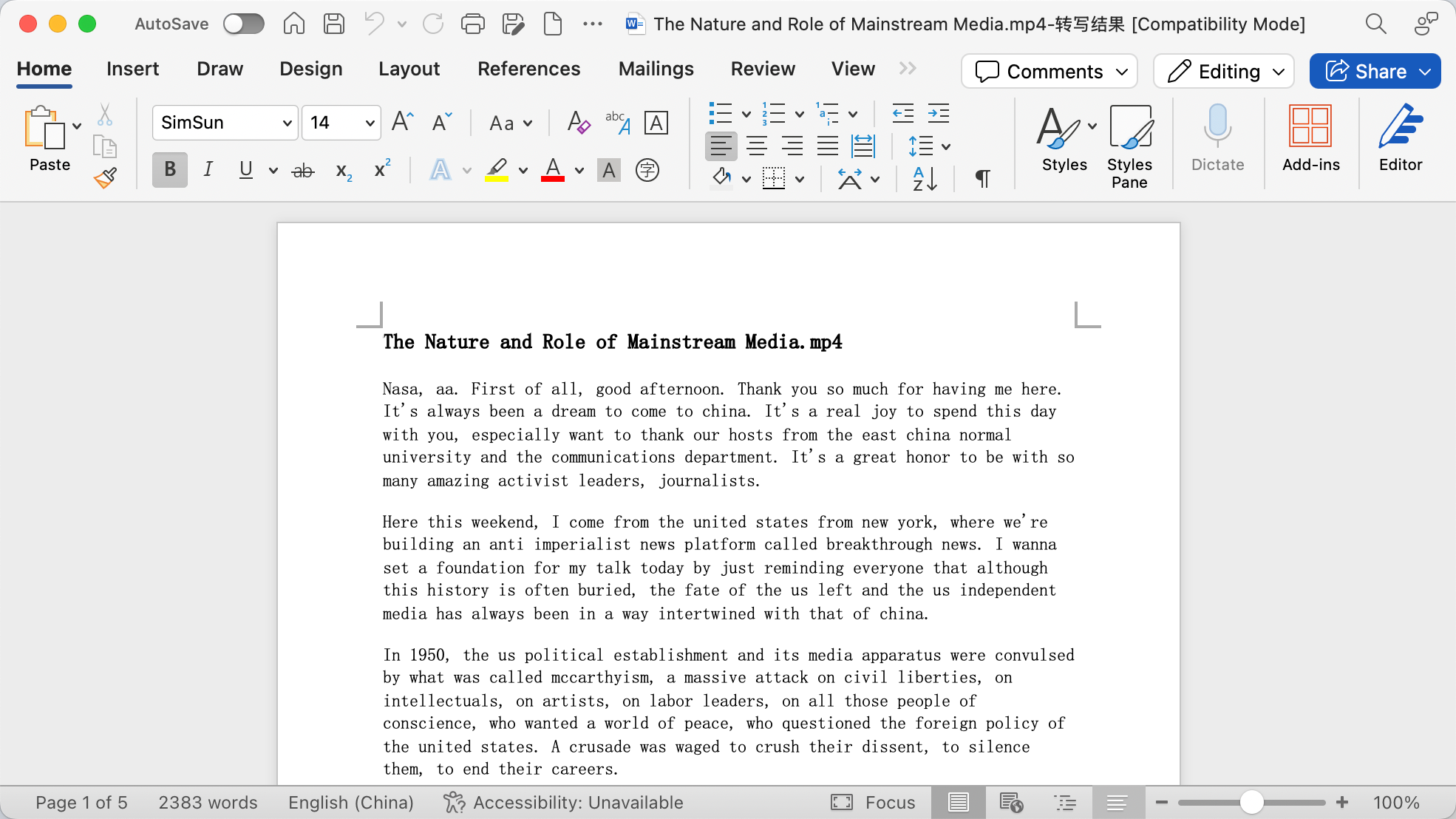
From a practical application perspective, iFLYREC can well meet the needs of scenarios such as meeting recording, interview collation, lecture transcription, and video subtitle production. Its advantage lies not only in its high recognition efficiency but also in its integration of speech recognition, speaker diarisation, professional term optimisation, translation, and export into a complete workflow, lowering the barrier for non-technical users to carry out speech-to-text tasks.
For researchers, media workers, and content creators who frequently need to process large amounts of audio and video materials, reasonably configuring the language, speaker, and domain parameters, and combining this with a post-processing proofreading workflow, usually allows them to quickly obtain high-quality, structured text results.
Transcribing with Web-Based AI Tools
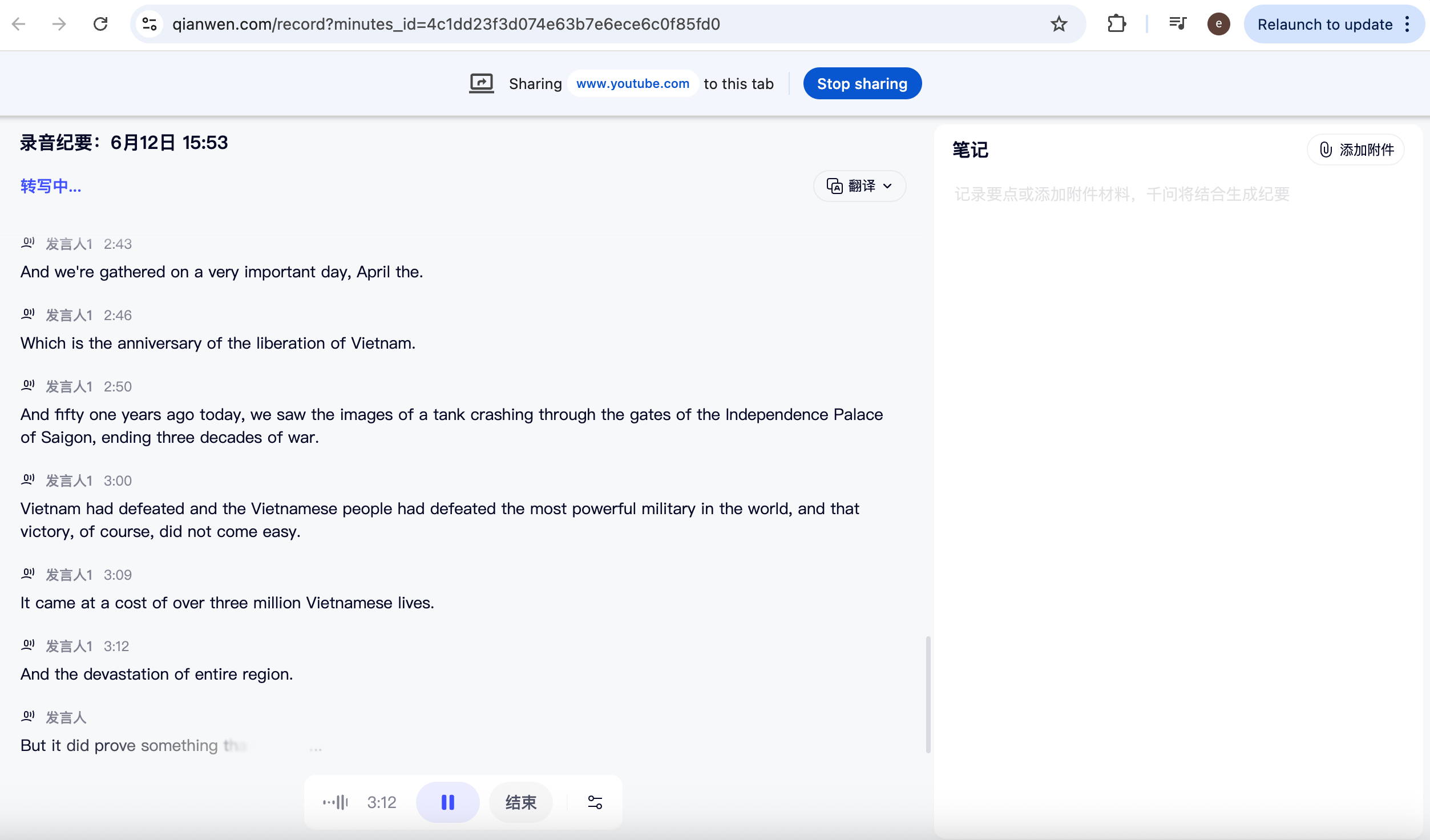
In addition to standalone transcription software, some AI web interfaces also provide online recording and meeting minutes functions. Qwen’s meeting minutes feature falls into this category. It can record content in real-time during a meeting, categorise speech based on different speakers, and finally generate a relatively complete text summary.
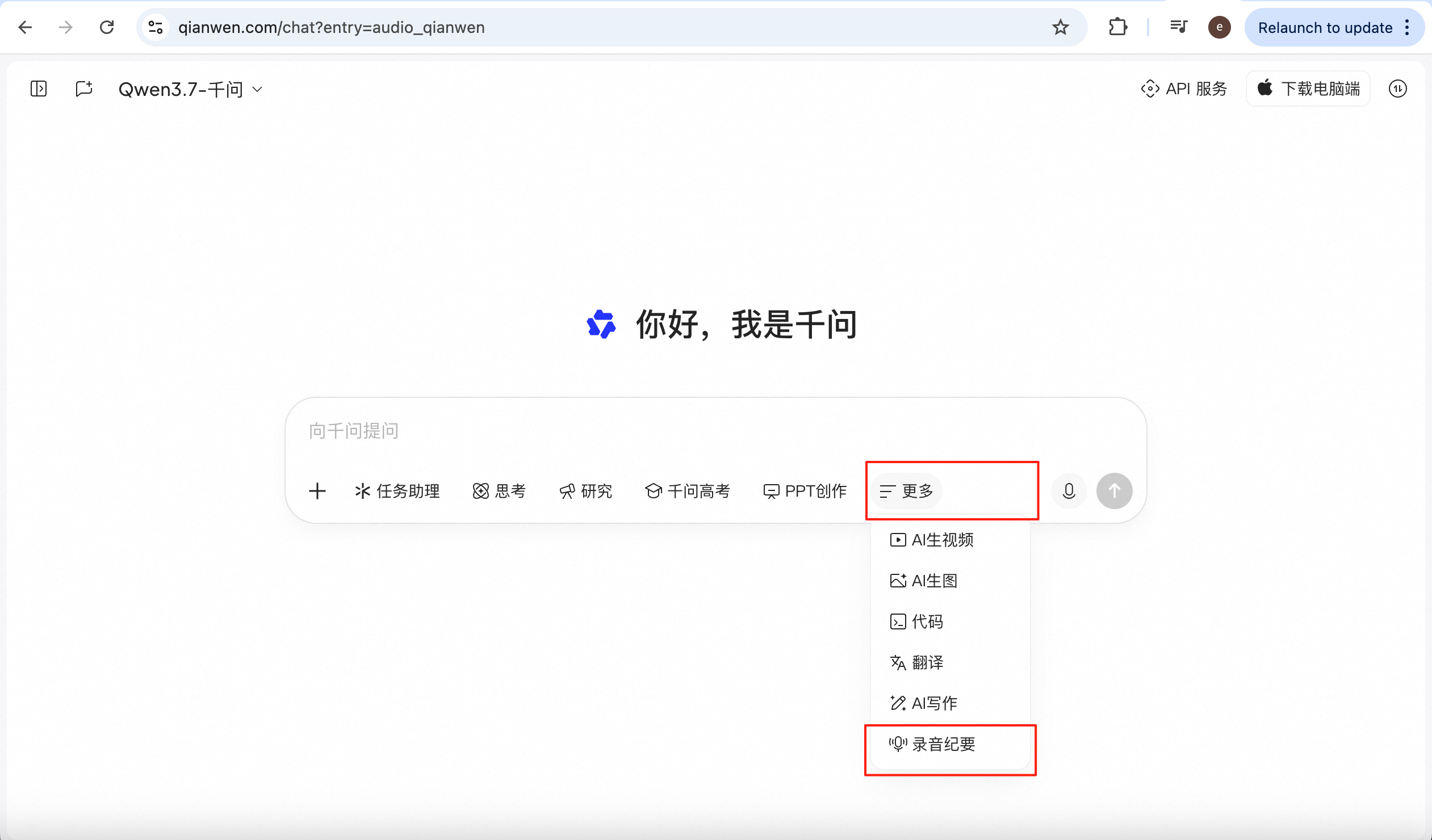
After entering the Qwen official website at https://www.qianwen.com/chat, click ‘More’ → ‘Meeting Minutes’ to enter the recording page.
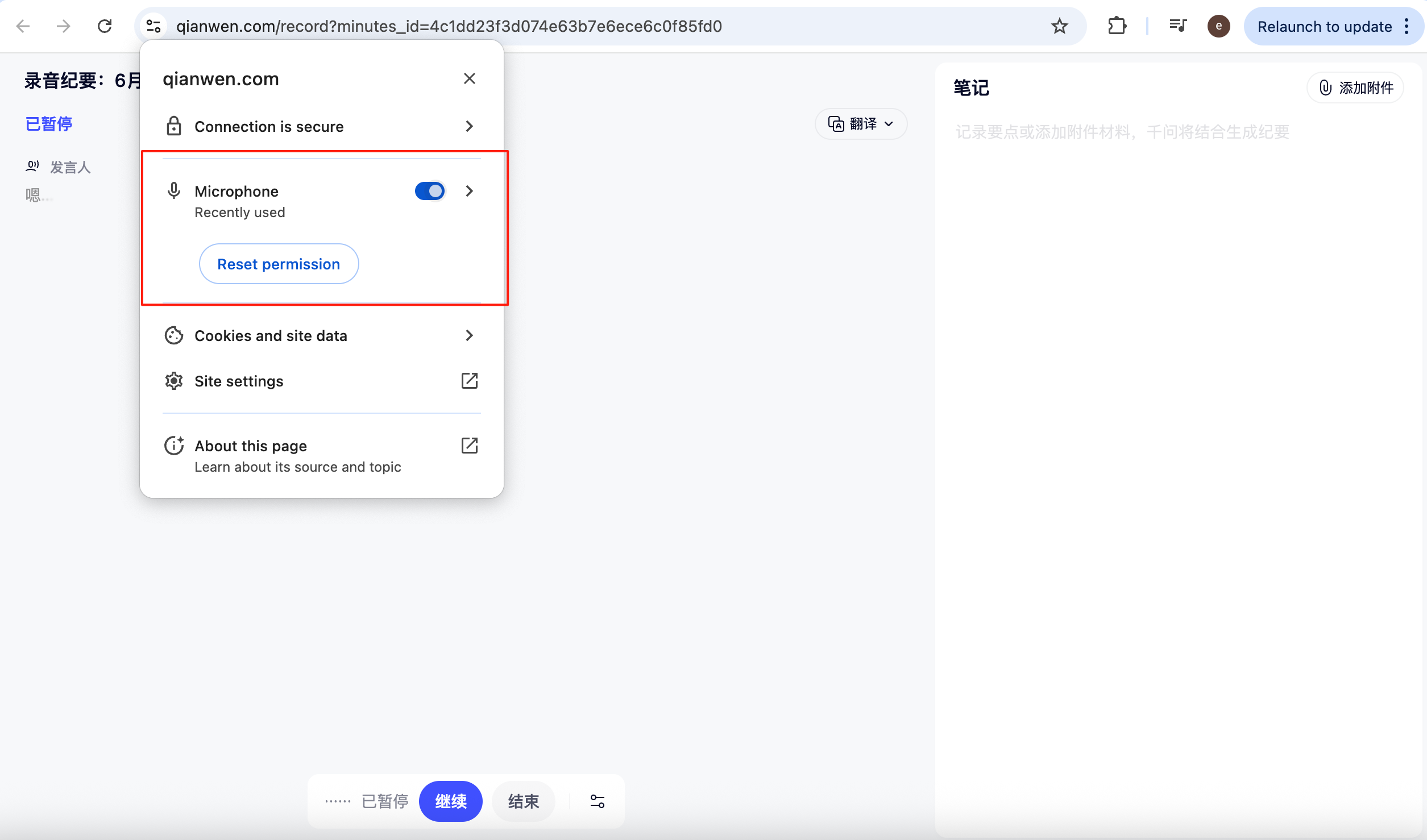
Once on the meeting minutes page, you need to grant microphone permission so that the system can record audio normally.
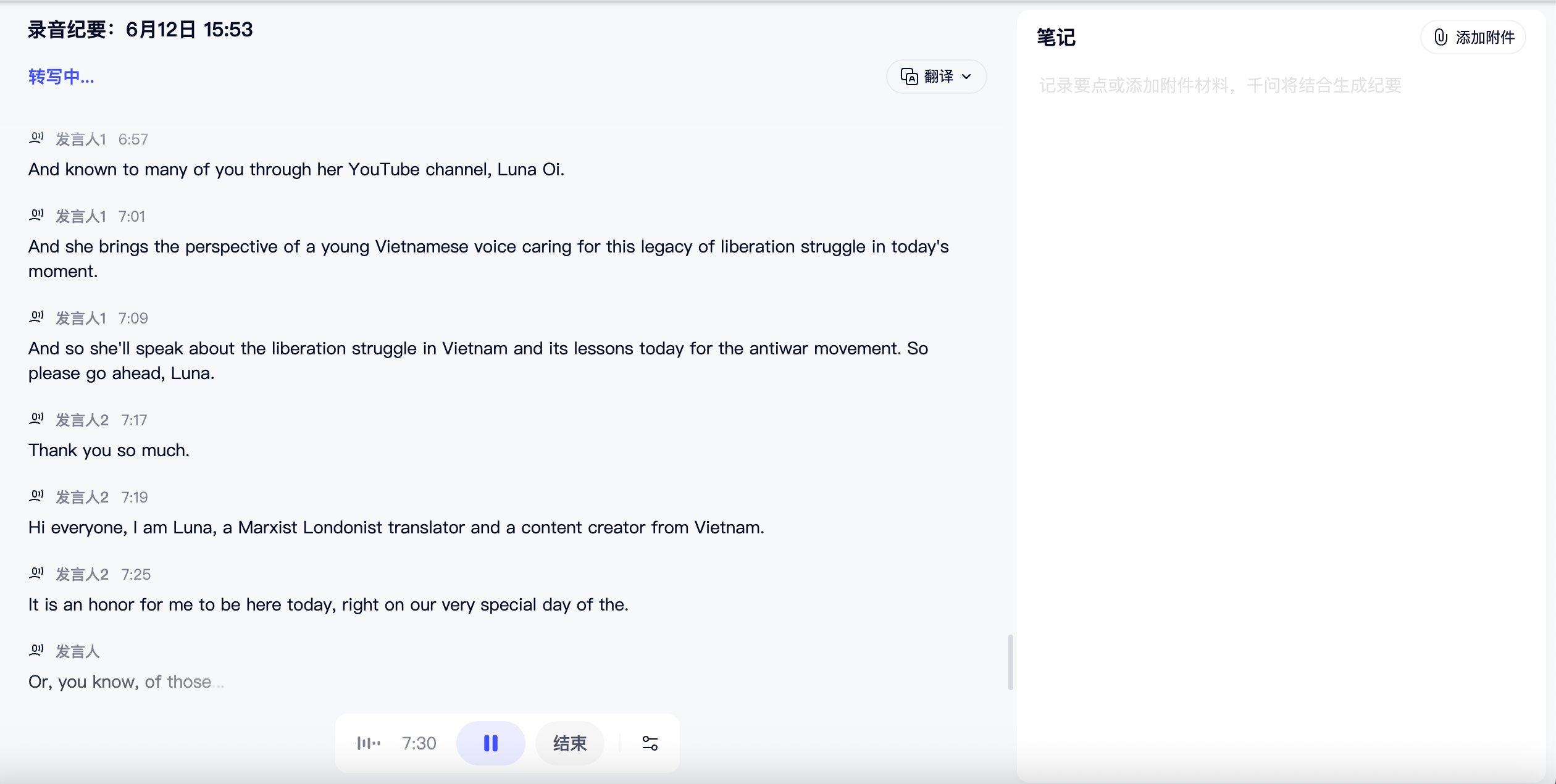
During the recording process, the system not only records the speaking time but also distinguishes between different speakers based on timbre and voiceprint characteristics, making it quite practical for multi-person discussion scenarios.
After clicking stop, Qwen will automatically summarise the content and generate a meeting report.
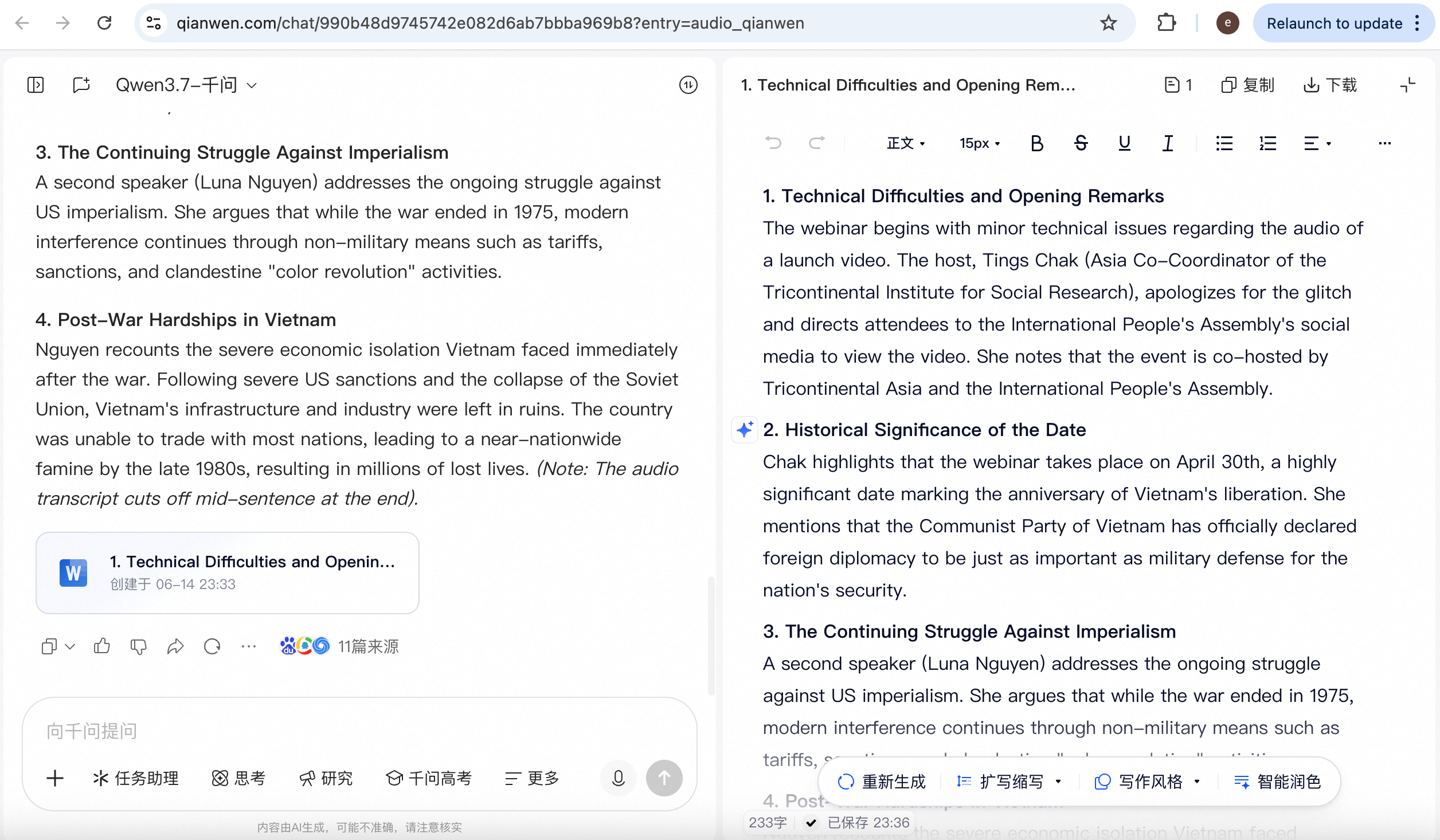
This approach is suitable for impromptu meetings, online discussions, and quick minute-taking, especially for users who don’t want to install extra software. Its advantage lies in its quick learning curve and short workflow, making it ideal for immediate use.
Transcribing with a Local Agent Skill
In addition to cloud-based online tools, you can also complete audio transcription by configuring skills in a local Agent. For example, OpenAI’s Whisper skill is a relatively common type of transcription tool that can run locally and is suitable for users with higher requirements for privacy and workflow.
The method for installing the Whisper skill in an Agent is also quite straightforward. Open the Agent and type:
Please help me install this skill:

npx skills add steipete/clawdis@openai-whisper
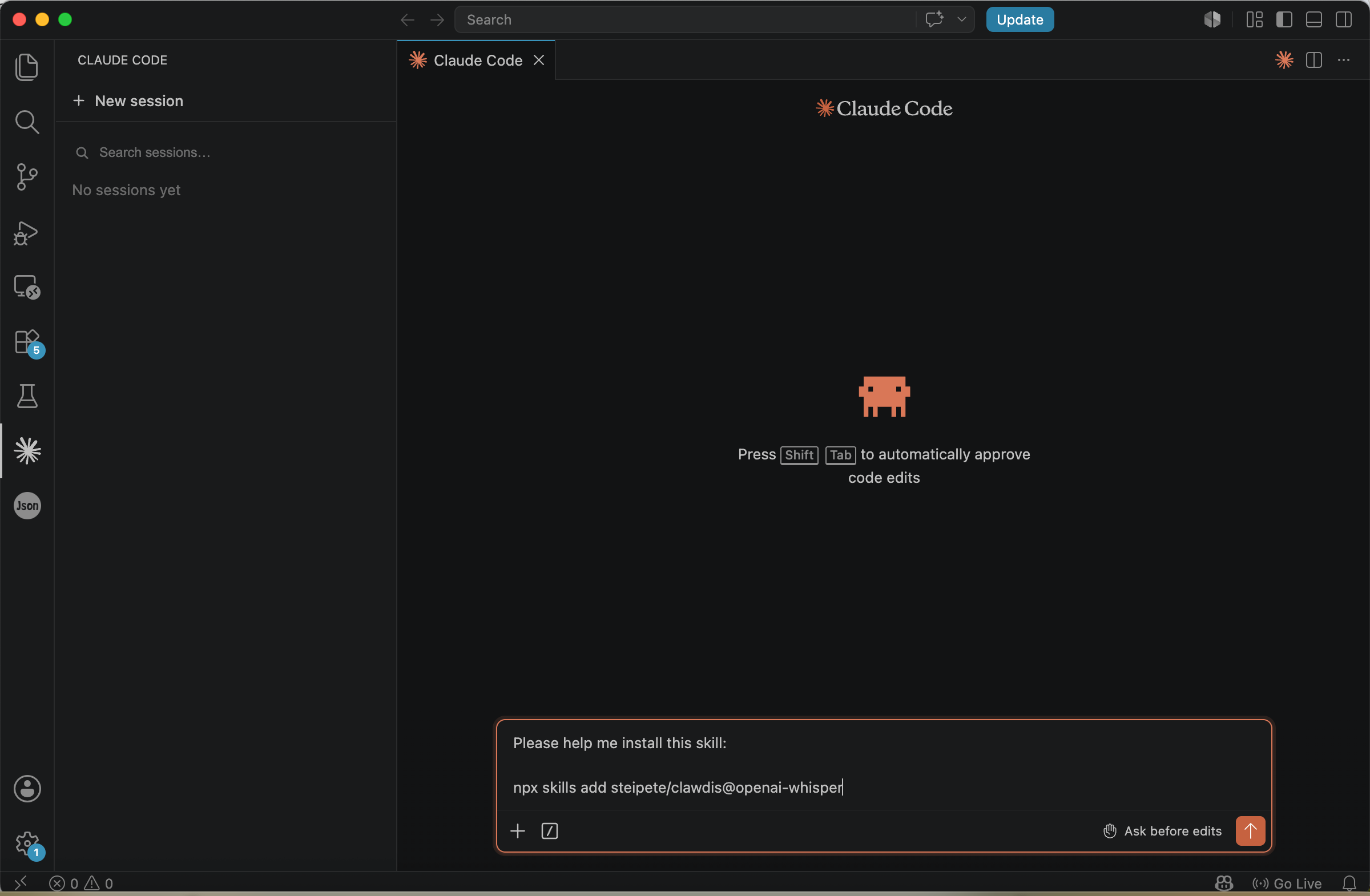
After waiting for the installation to complete, restart VS Code to refresh the skills list. Then, when you need to transcribe an audio or video file, simply input:
/openai-whisper Transcribe the audio/video file @file_to_transcribe.mp4 and output the result as a plain text (.txt) transcript.
If you need a subtitle file instead, you can also change the output format to .srt, thus obtaining standard subtitle text suitable for video post-production use.
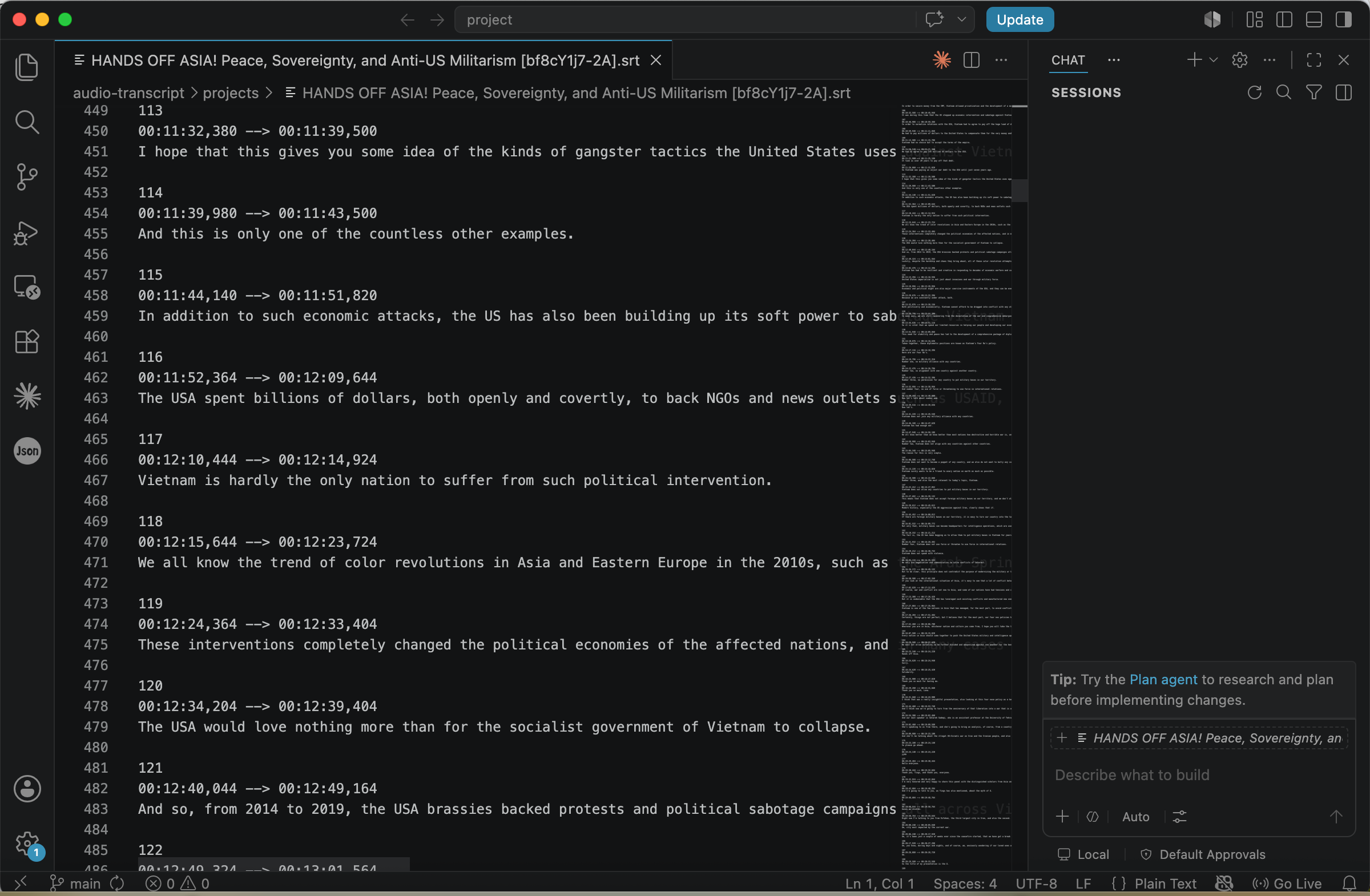
The characteristic of this method is its greater controllability, making it suitable for users who have clear requirements for output format, file path, and processing workflow. However, it also depends more heavily on local environment configuration, making it better suited for people already using an Agent workflow.
Transcribing with Cloud APIs
If you prefer not to transcribe audio locally, you can also directly use the API services provided by major model vendors. The advantage of this approach is that it avoids the computer overheating, performance usage, and memory pressure caused by running a local model for a long time, making it especially suitable for scenarios with long audio files and many tasks.
In fact, most common AI model providers on the market offer audio transcription capabilities, such as OpenAI, Gemini, Claude, and the previously mentioned Qwen. Users only need to apply for an API Key on the corresponding platform, and their local Agent can call cloud capabilities to complete the transcription. However, these services are typically paid.
Take OpenAI’s API Key as an example below. OpenAI’s API Key can be obtained at https://platform.openai.com/api-keys and usually starts with sk-.
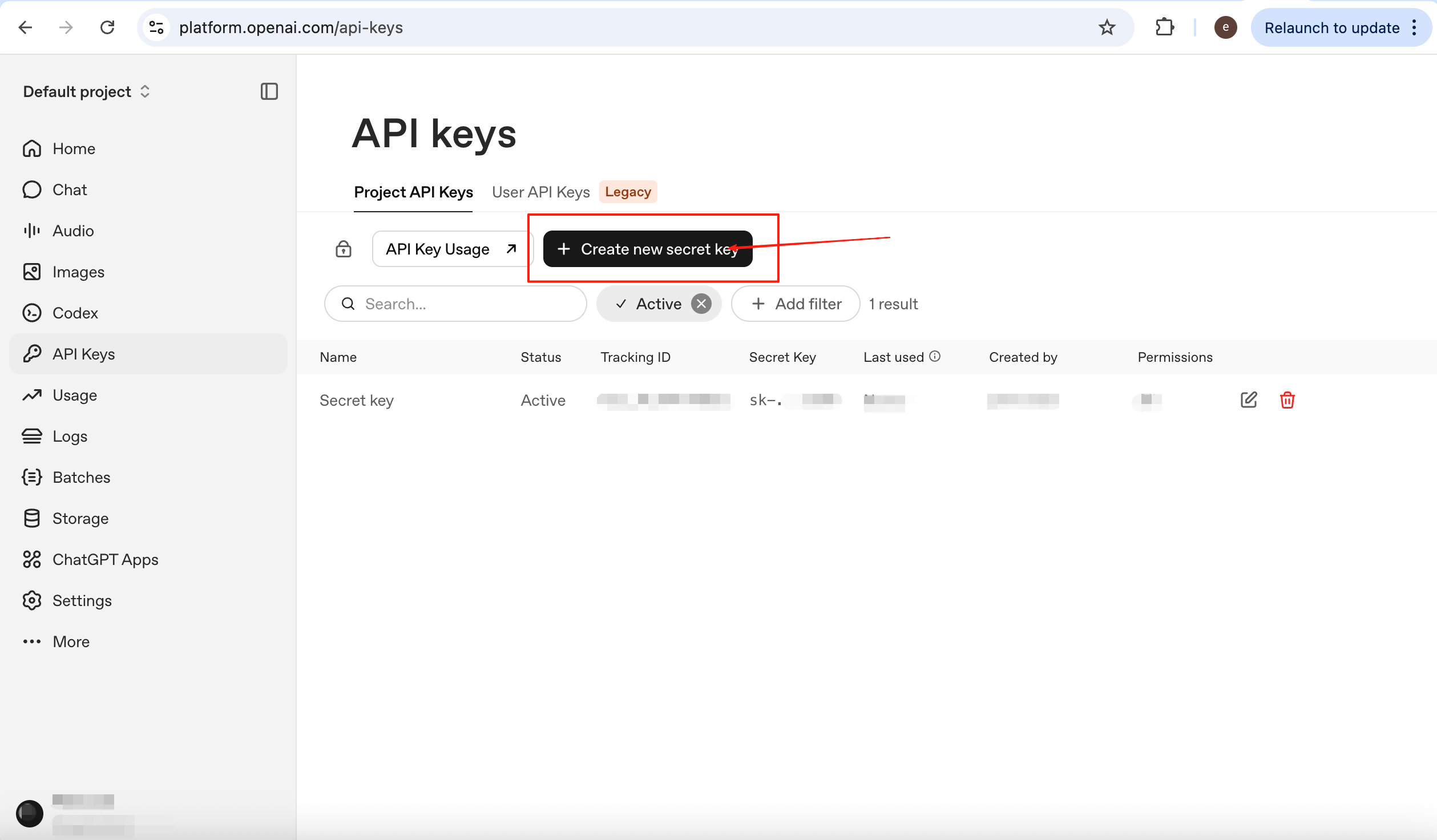
After copying the API Key, you can save it in a file or write it into an environment variable for subsequent calls. Then, you can reference this key in the Agent, for example:
Use the OpenAI API key provided in @openai_api_key.txt to transcribe the audio/video file @file_to_transcribe.mp4. Output the result as a plain text (.txt) transcript.
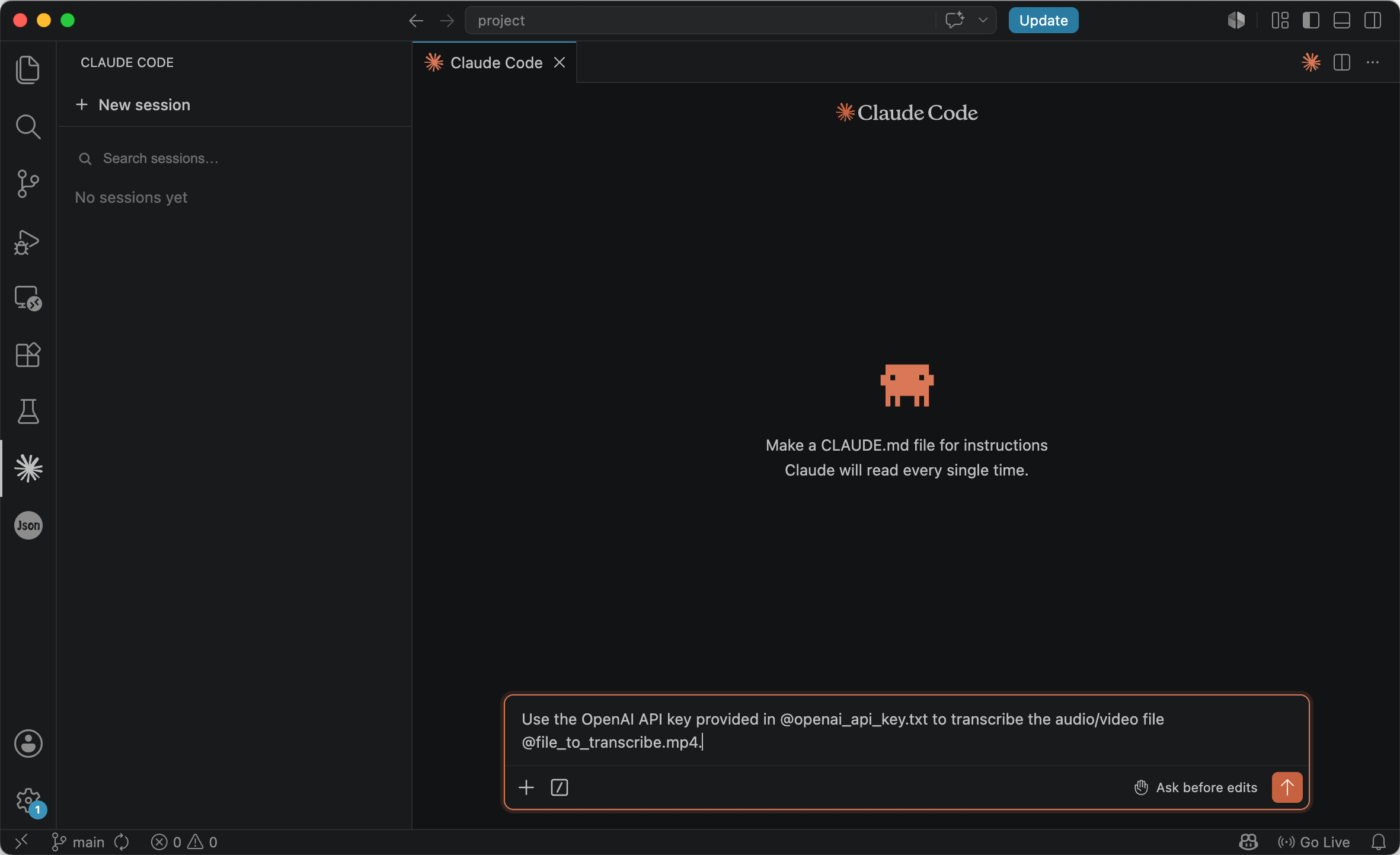
The Agent will call OpenAI’s audio transcription model to convert the video or audio content into text. Generally, the results obtained this way are of high quality, especially suitable for materials that are clear, have formal content, and are long in duration. The usage for other model vendors is essentially similar; as long as you obtain the corresponding API Key, you can integrate the transcription capability into your own workflow.
Summary
This article introduced several common audio-to-text methods, including iFLYREC, Qwen meeting minutes, local skill transcription, and cloud API calls. Different methods have their own focuses: graphical tools are more suitable for regular users to get started quickly, local skills are better for users who already have an Agent workflow, and the API solution is more suitable for scenarios requiring stable, batch processing of audio and video materials.
Regardless of the method used, the actual effect usually depends on three key factors: audio quality, parameter settings, and post-processing proofreading. As long as you clarify the language, speaker, and professional domain as much as possible before transcription, and make necessary revisions before exporting, you can quickly obtain high-quality text that can be used for research, organisation, and publication.